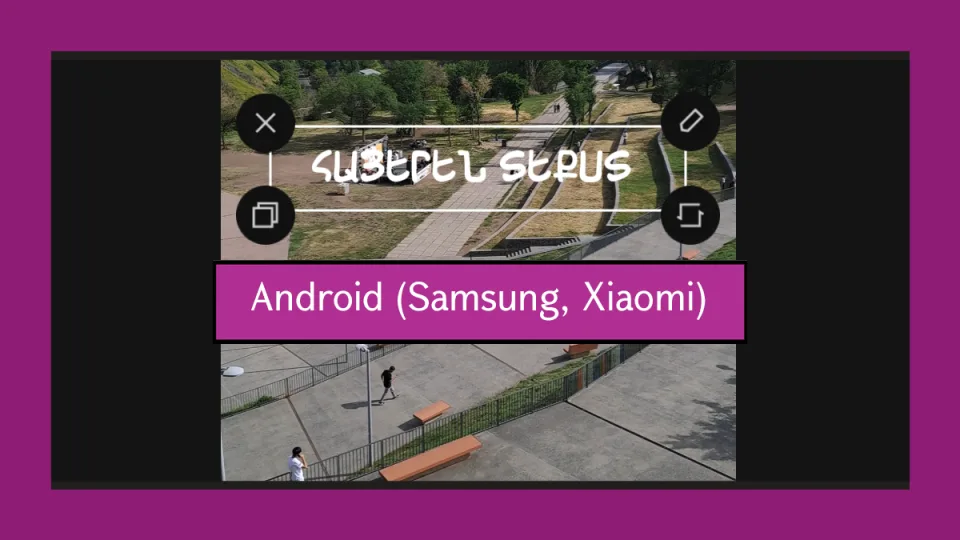
Android is the hardest of the major systems for custom fonts, and it got harder in 2026. There is no built-in way to install a font the way Windows and macOS do, and the workaround that Samsung owners relied on for years was blocked earlier this year.
On Windows, a Mac or an iPhone? The same guide is here for Windows, Mac and iPhone and iPad.
The good news is that the thing most people actually want still works everywhere. If your goal is Armenian text in a video, a poster or a story, the app you are designing in can load the font directly, no system changes and no root. This guide starts there, then covers the system-wide picture honestly, device by device.
First, Two Things Worth Knowing
You do not need a font to read Armenian. Android ships with Armenian letter coverage built in. If Armenian text shows as boxes or question marks somewhere, that is almost always the app or the web page choosing a font without Armenian glyphs, and installing something on your phone will not change it.
A font is not a keyboard. A font decides how letters look. Which letters appear when you tap a key is the keyboard layout, a separate setting covered at the end of this guide.
Download the Font on Your Phone
Fonts from fonter.am download as a ZIP archive containing the actual .ttf or .otf files.
1. Open the font page and tap "Download Font". Browse all the fonts, or start with a category such as script fonts.

2. Wait for the download to finish.

3. Open Downloads in the Files app, or "My Files" on Samsung.

4. Tap the downloaded ZIP.
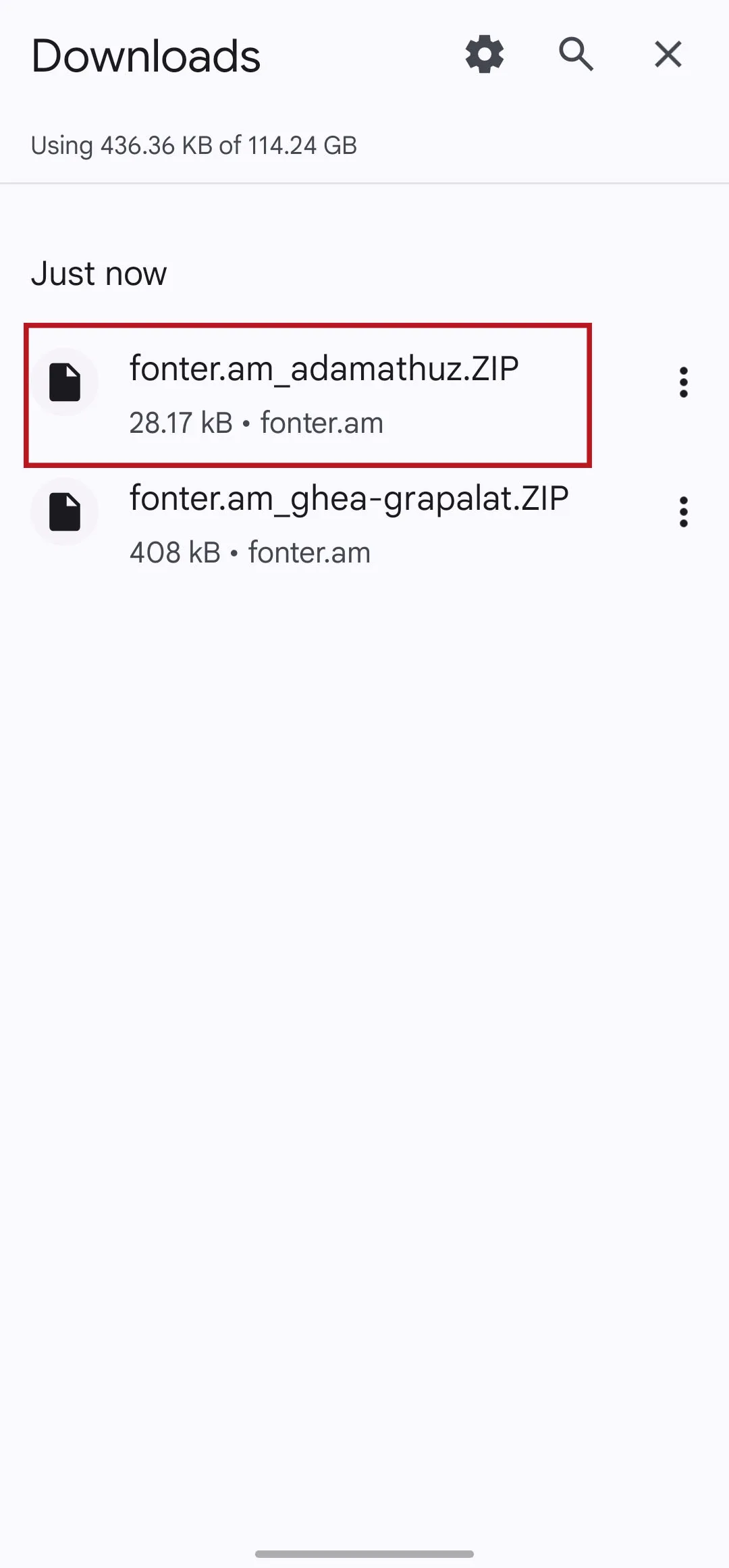
5. Extract it. Some older file managers cannot open archives. Files by Google can, and it is free.
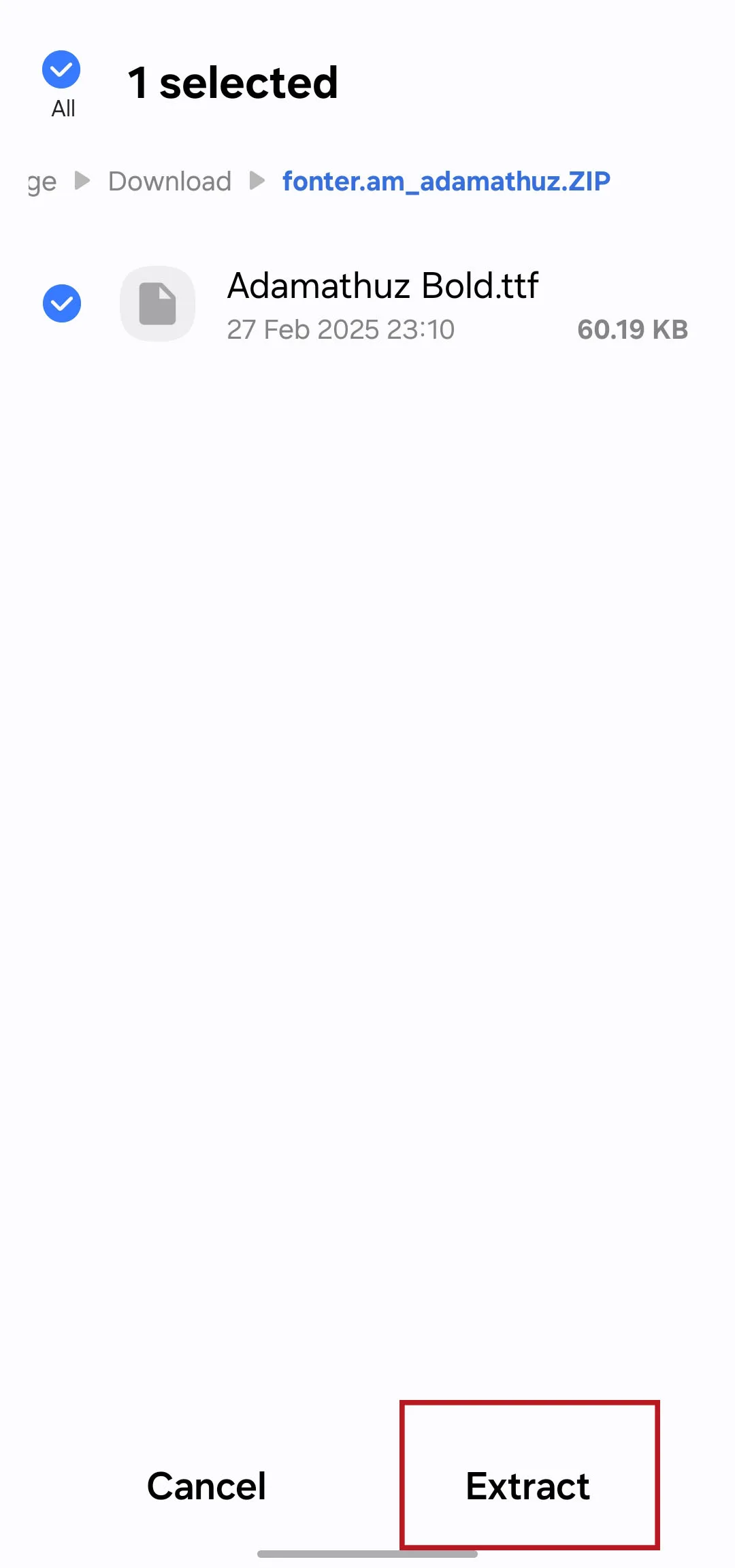
6. The .ttf or .otf files are in the new folder.
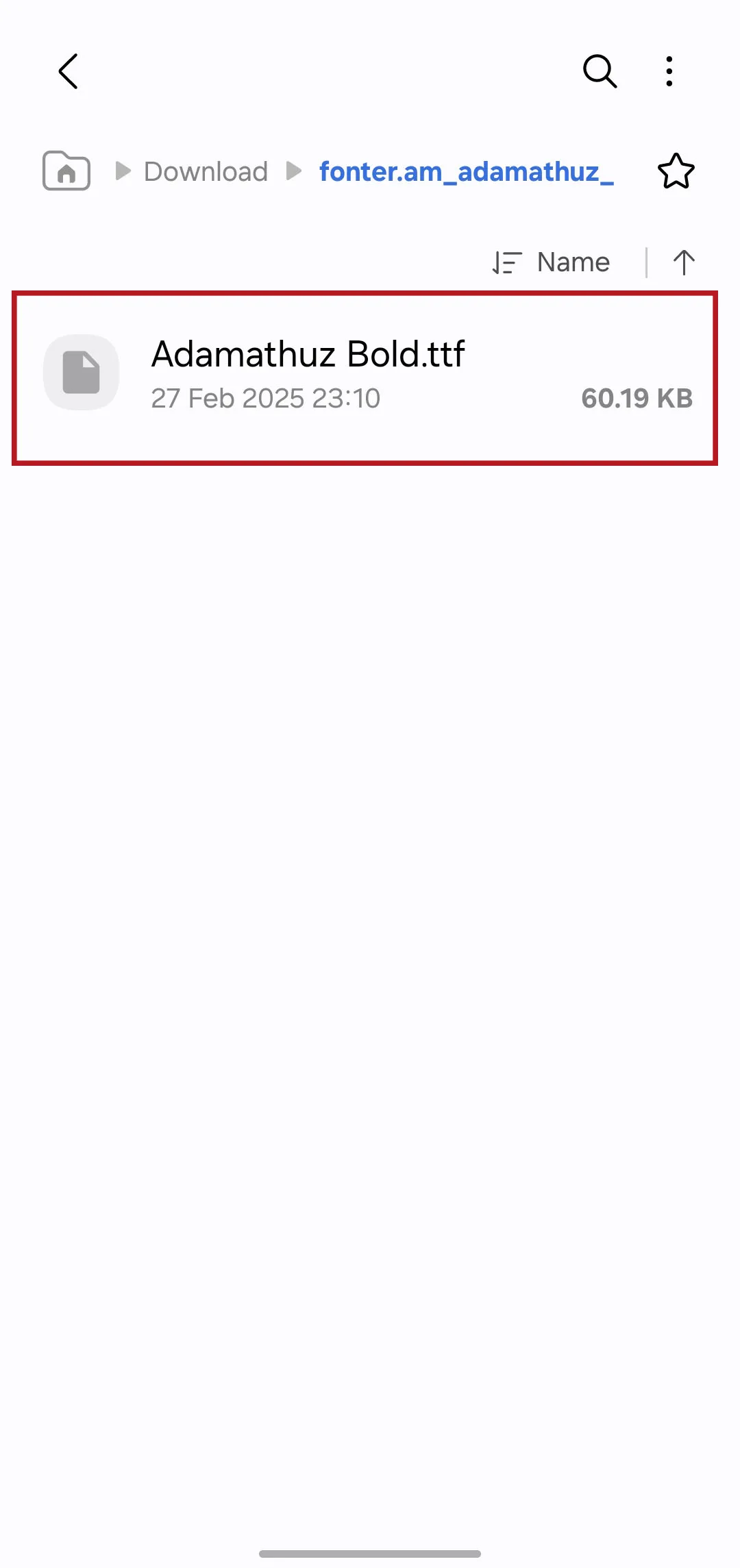
Keep them. Everything from here on points back to these files.
The Reliable Route: Load the Font into the App
This works on every Android phone, on every version, with no root and no system changes. Each app keeps its own font list.
Add an Armenian font in CapCut
CapCut ignores system fonts and imports font files directly, so this works on any Android phone.
1. Add your Armenian text, tap it, and open the Fonts section.
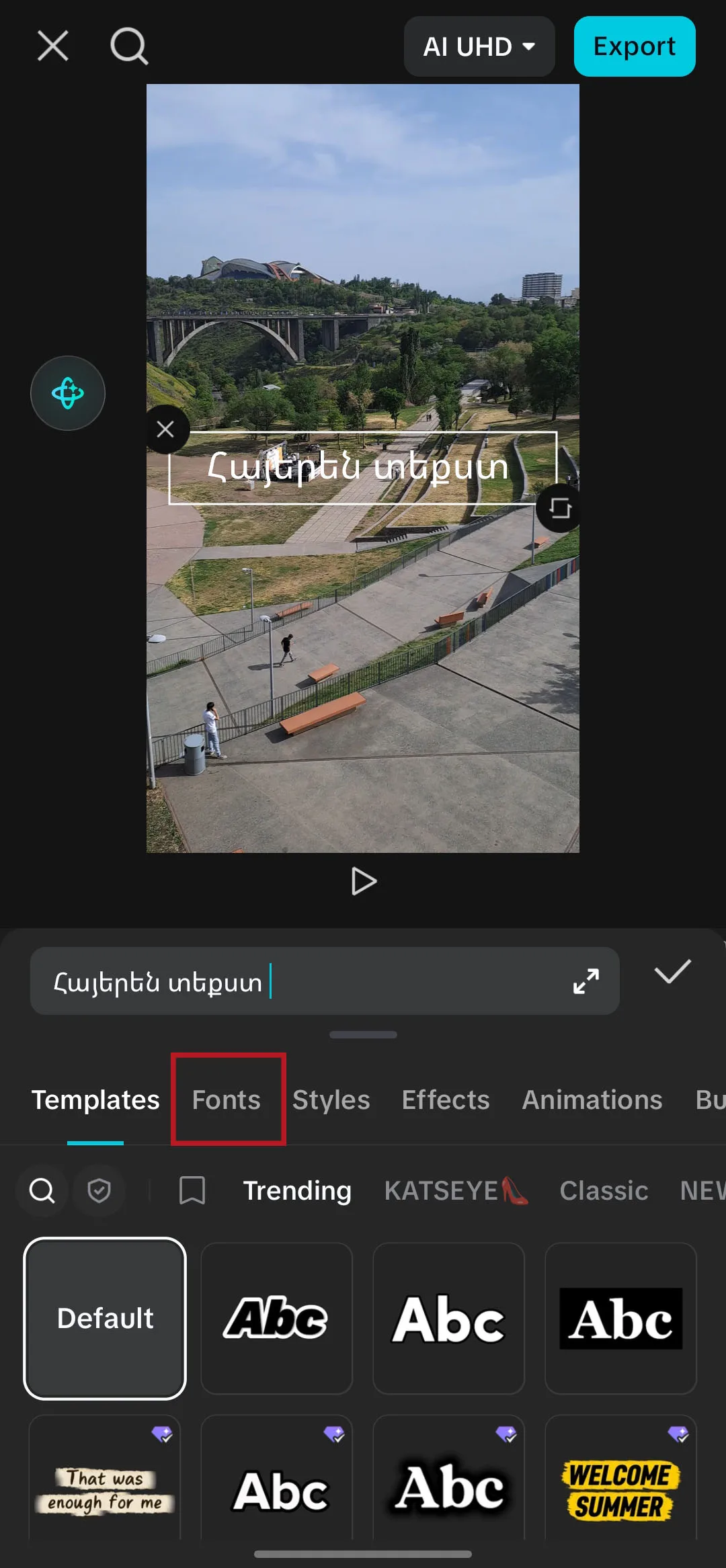
2. Swipe the row all the way to the left and pick My fonts.
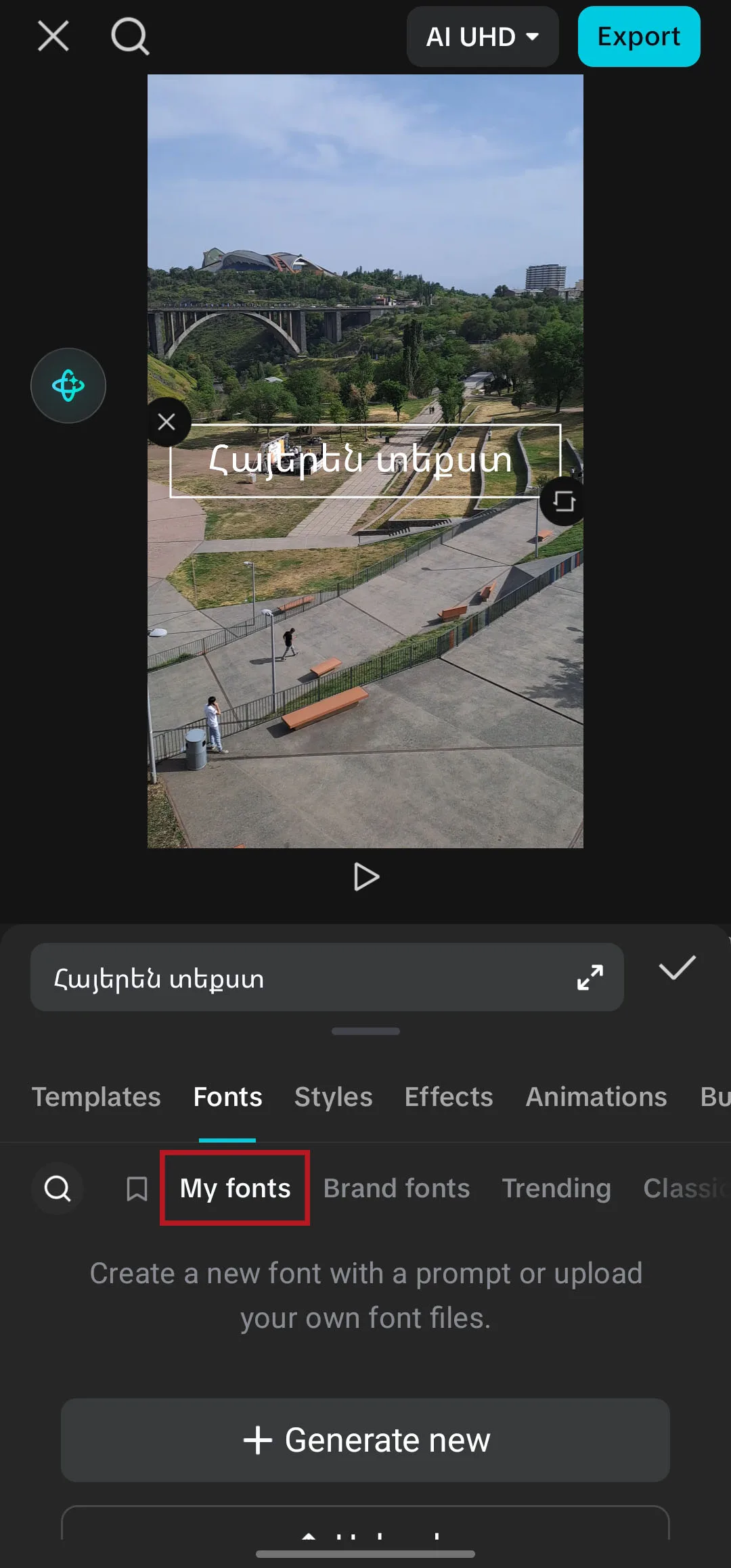
3. Drag upwards and tap the Upload button.
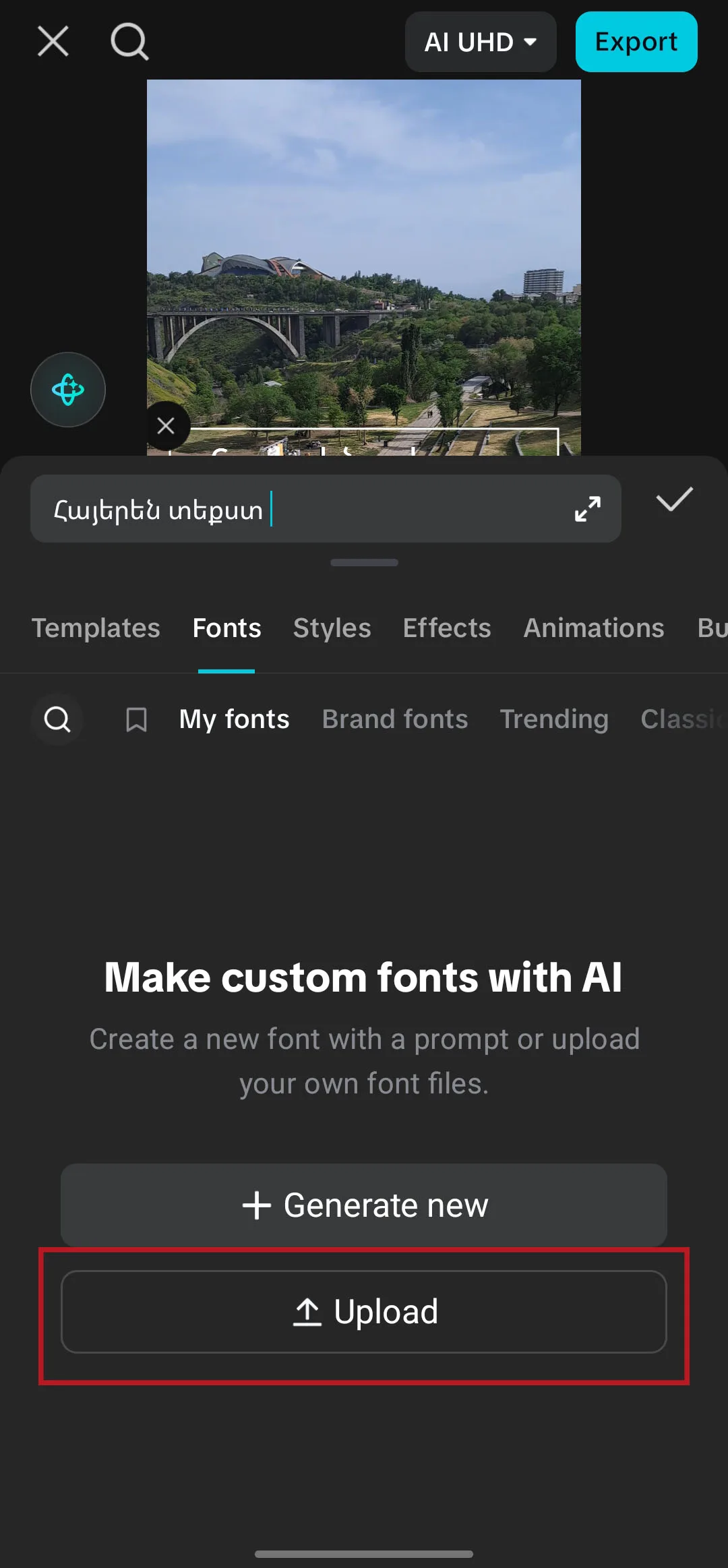
4. Open the sidebar in the file picker.
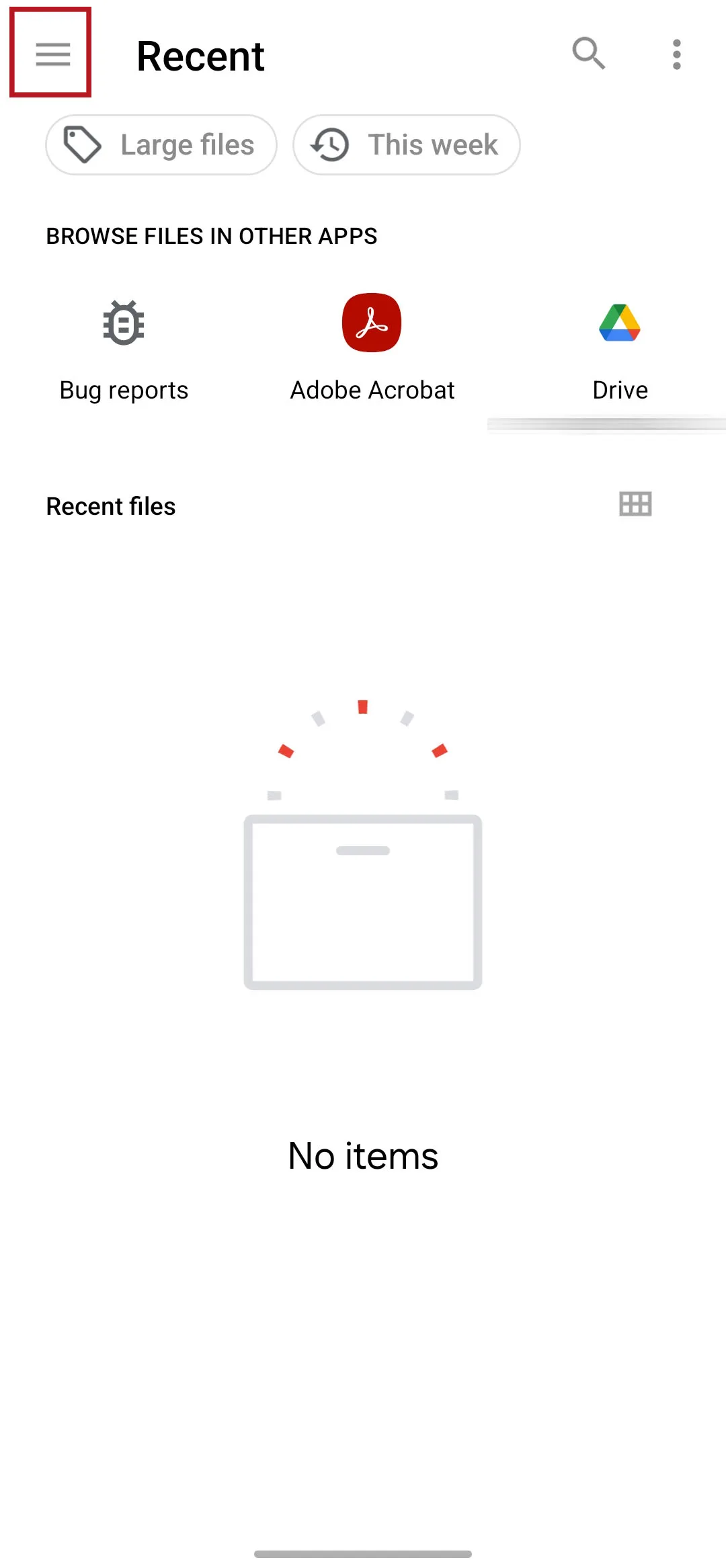
This screen differs by device and model, so yours may not look like the picture. What matters is the same either way: find the Downloads folder, wherever your phone keeps it.
5. Tap Downloads, or Загрузки.

6. Open the folder you extracted in the earlier steps, fonter_am_adamathuz for instance.
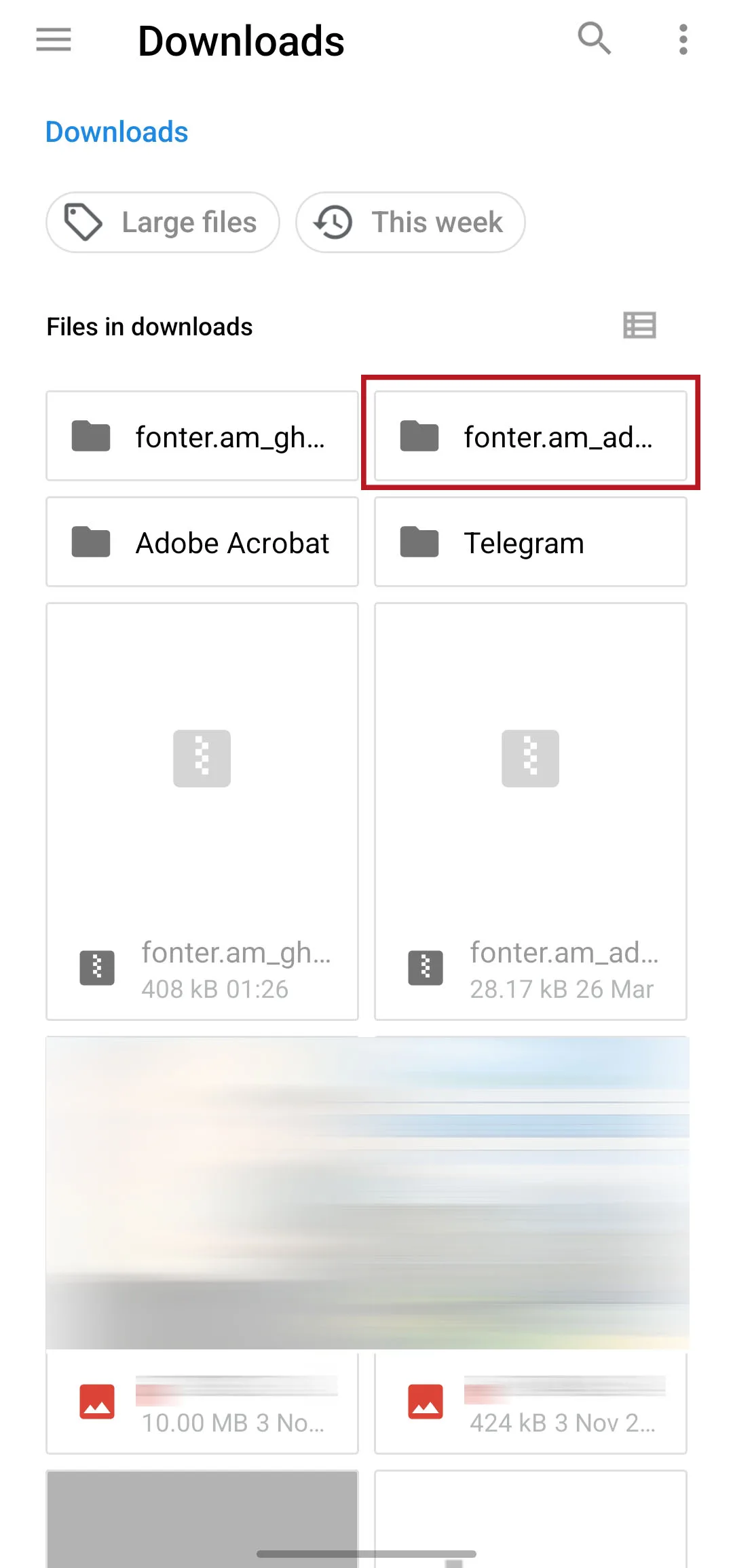
7. Select the font's .ttf or .otf file.
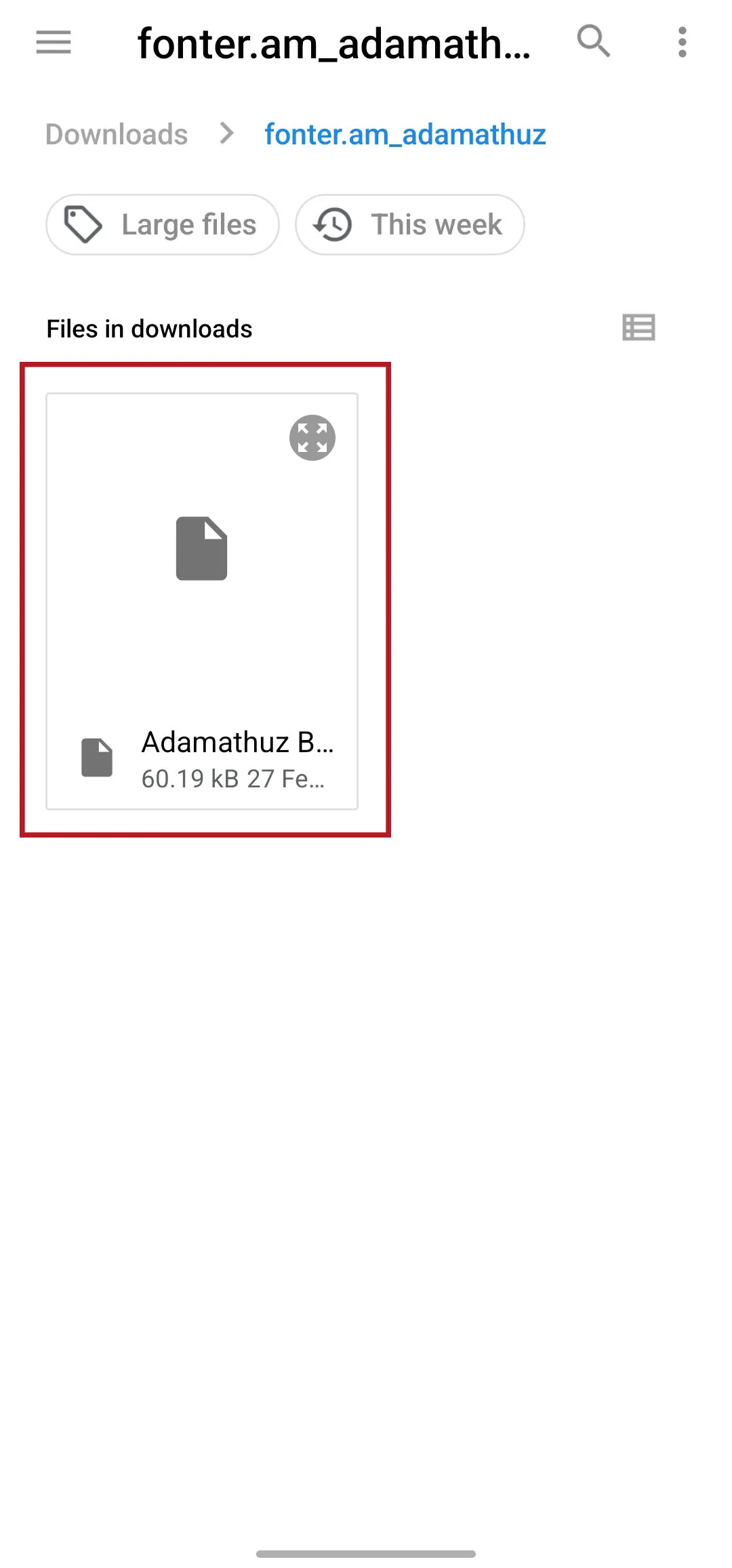
8. The font appears in My fonts. Tap it, then tap ✓ to apply it.

9. Your Armenian text is now in the new font.

Import a font into Picsart
- Add a text layer to your project.
- Open the Font options and go to My Fonts.
- Choose the import option and select your font file from Downloads.
Custom fonts in Picsart are a Pro feature.
Upload an Armenian font to Canva
- Open Canva and go to Brand Kit, or the font upload area in your project.
- Upload the
.ttfor.otffile. - Select it in your design.
Uploading fonts is a Canva Pro feature. A font uploaded on your phone also appears in Canva on a computer, because it lives in your account rather than on the device.
Load a font into PixelLab
PixelLab is a favourite for Armenian text on posters and thumbnails because font import is free and quick.
- Add a text layer and tap the Font option.
- Tap My fonts, then the import or + button.
- Select the font file from Downloads.
What about Instagram, TikTok and WhatsApp?
They have no font import either, and no amount of looking will find one. The way round it is to make the thing somewhere else: design the image or the video in CapCut, PixelLab or Canva with your Armenian font, export it, and post that. For a caption or a comment, you are stuck with whatever font the app uses, and no install on your phone will change it.
What about Word, Google Docs and Sheets?
None of the mobile office apps accept custom fonts. Google Docs, Google Slides and Microsoft Word on Android all ignore fonts on the device and give you no import option. If a document has to use an Armenian font from this site, write it on a computer, or write it on the phone and apply the font later on a desktop.
System-Wide Fonts: The Honest Picture
Changing the font of the whole phone interface is a different job, and it depends entirely on who made your phone.
Samsung (One UI)
Checked September 2026. Samsung changes this often, so if your phone behaves differently, it has probably moved again.
Samsung has its own font system and used to allow custom fonts through third-party installers such as zFont 3 and iFont, which packaged a .ttf as a FlipFont app.
This changed in March 2026. A Samsung security patch introduced a hard block on non-root custom fonts, using certificate checks, kernel-level verification and SELinux rules. The block affects:
- One UI 8.5, all versions
- One UI 8.0 on the March 2026 patch and newer
On One UI 7 and older, the old method still works: install zFont 3, pick your font file, and apply it. If your phone is affected, your realistic options are:
- Use the per-app route above. For most people this covers the actual need.
- Use Samsung's own fonts. Settings → Display → Font size and style → Font style, then download what Samsung offers. Armenian coverage there is thin.
- zFont 3's experimental One UI 8 mode. Recent versions offer this with a companion app, but it can extend boot times dramatically and has caused bootloops. Back up your phone first, and treat it as a risk rather than a recommendation.
- Root the device. This works, and it also trips Knox permanently, can void your warranty and may break banking apps. Not worth it for a font.
Xiaomi (HyperOS and MIUI)
Xiaomi handles fonts through the Themes app, which expects the .mtz format rather than a plain .ttf. Converting a font into an .mtz is possible with helper apps such as Font2MTZ, but on current HyperOS versions applying a custom theme font generally requires an unlocked bootloader or a xiaomi.eu ROM. Regional firmware often blocks it outright.
Stock Android, Pixel, Nothing, Motorola and others
Stock Android has no interface for installing a font, and no supported way to add one without root. Some launchers can change the font of the home screen and app drawer only, which leaves the rest of the system untouched.
Type Armenian on Android
Reading and writing are separate problems. To type Armenian, add the layout to your keyboard.
Type Armenian with Gboard
- Open Settings → System → Languages & input → On-screen keyboard → Gboard.
- Tap Languages, then Add keyboard.
- Search for Armenian and choose a layout.
- Switch layouts with the globe icon on the keyboard, or by holding the space bar.
Gboard offers both the traditional Armenian arrangement and a phonetic option where keys match the Latin letters they sound like. The phonetic one is easier if you mostly type in English.
Turn on Armenian in the Samsung Keyboard
- Open Settings → General management → Samsung Keyboard.
- Tap Languages and types → Manage input languages.
- Download Armenian and enable it.
Add the Armenian layout to SwiftKey
- Open SwiftKey, tap Languages.
- Search for Armenian and download it.
- Swipe the space bar to switch between languages.
Troubleshooting
The font is not in the app's list. Most apps show imported fonts only under a section called "My fonts" or similar, separate from their built-in list. Check there before re-importing.
Armenian text shows as boxes. The app is using a font without Armenian glyphs. Switch the text to a font that has them, in this case the one you imported.
Bold or italic looks wrong. You imported only the Regular file. Import the Bold and Italic files from the same download, and the app will use the real ones.
The ZIP will not open. Install Files by Google, or use "My Files" on Samsung. Some older file managers cannot extract archives.
The font imported but the text did not change. Some apps apply a font only to the selected layer. Select the text first, then pick the font.
The Short Version
- Pick a font from the catalogue, download the ZIP, and extract the
.ttfor.otffile. - In CapCut, Picsart, Canva or PixelLab, use the app's own font import and point it at that file.
- For a system-wide font, expect it to work only on Samsung One UI 7 or older, or on Xiaomi with an unlocked bootloader.
- To type Armenian, add the Armenian layout to Gboard or the Samsung Keyboard.