Installing a font on a MacBook takes about ten seconds once you know where to click, and the steps are the same on an iMac, a Mac mini or a Mac Studio. This guide covers the whole path: downloading a font from fonter.am, unzipping it, installing the .ttf or .otf files through Font Book, and using the font in Pages, Microsoft Word, Photoshop and Canva. The awkward parts, like an app that refuses to show a font you just installed, are handled at the steps where they come up.
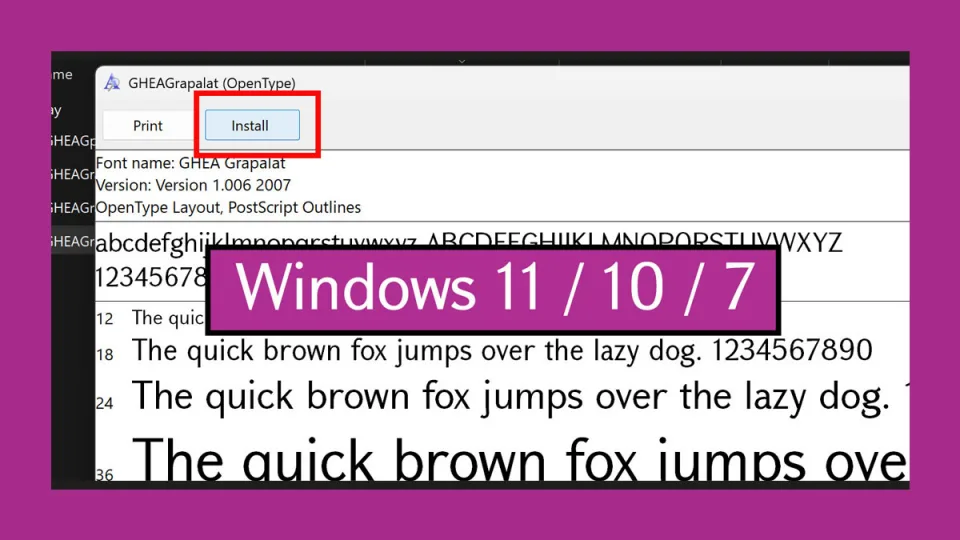
On Windows, an iPhone or Android? The same guide is here for Windows, iPhone and iPad and Android.
Download the Font and Unzip It
Fonts arrive as a ZIP archive so a whole family travels in one file. A family often holds separate files for Regular, Bold, Italic and other styles, and each one is its own .ttf or .otf.
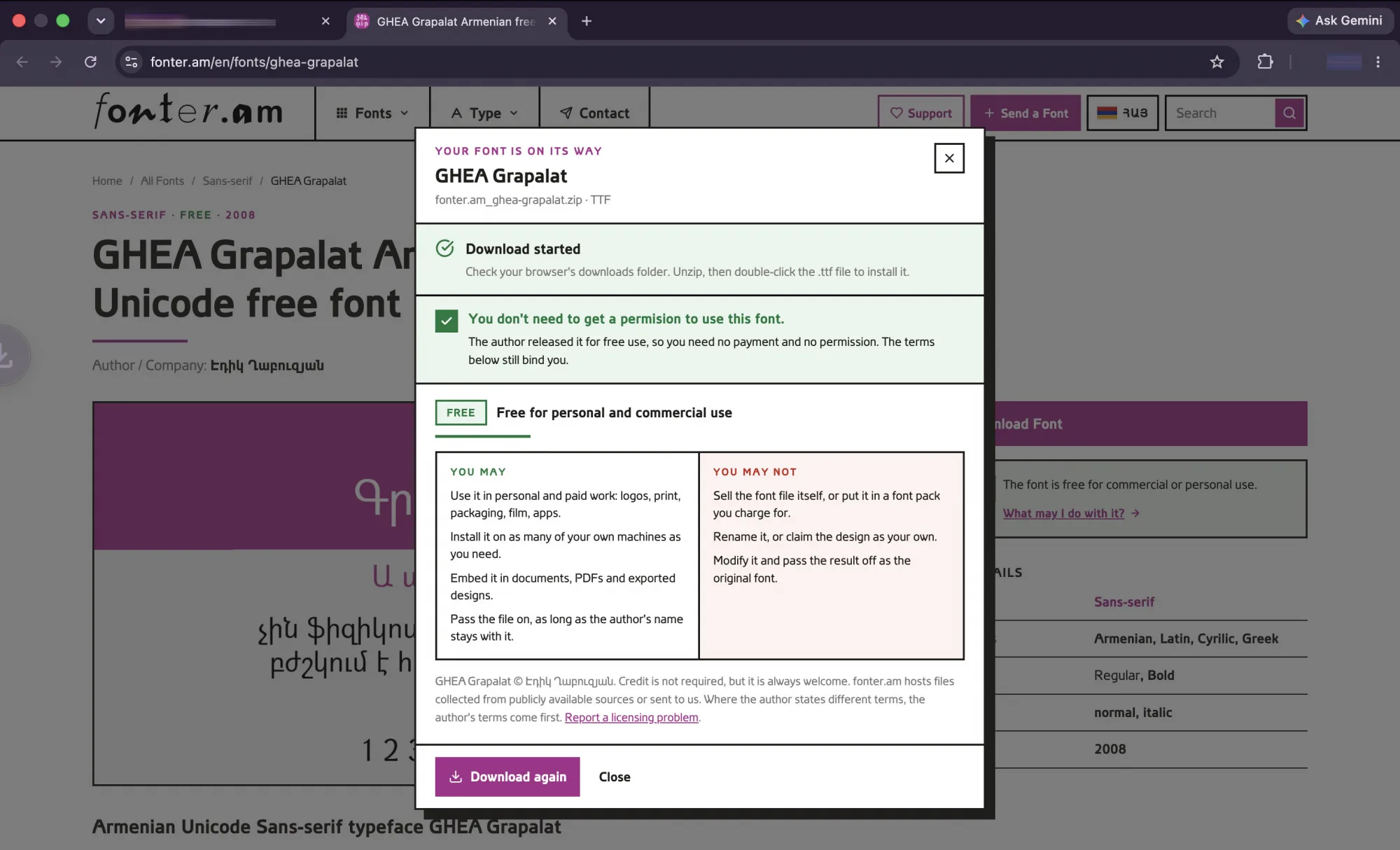
1. Open the font page on fonter.am. Search by name or browse the categories.
2. Click the "Download Font" button. The file arrives as a .zip.
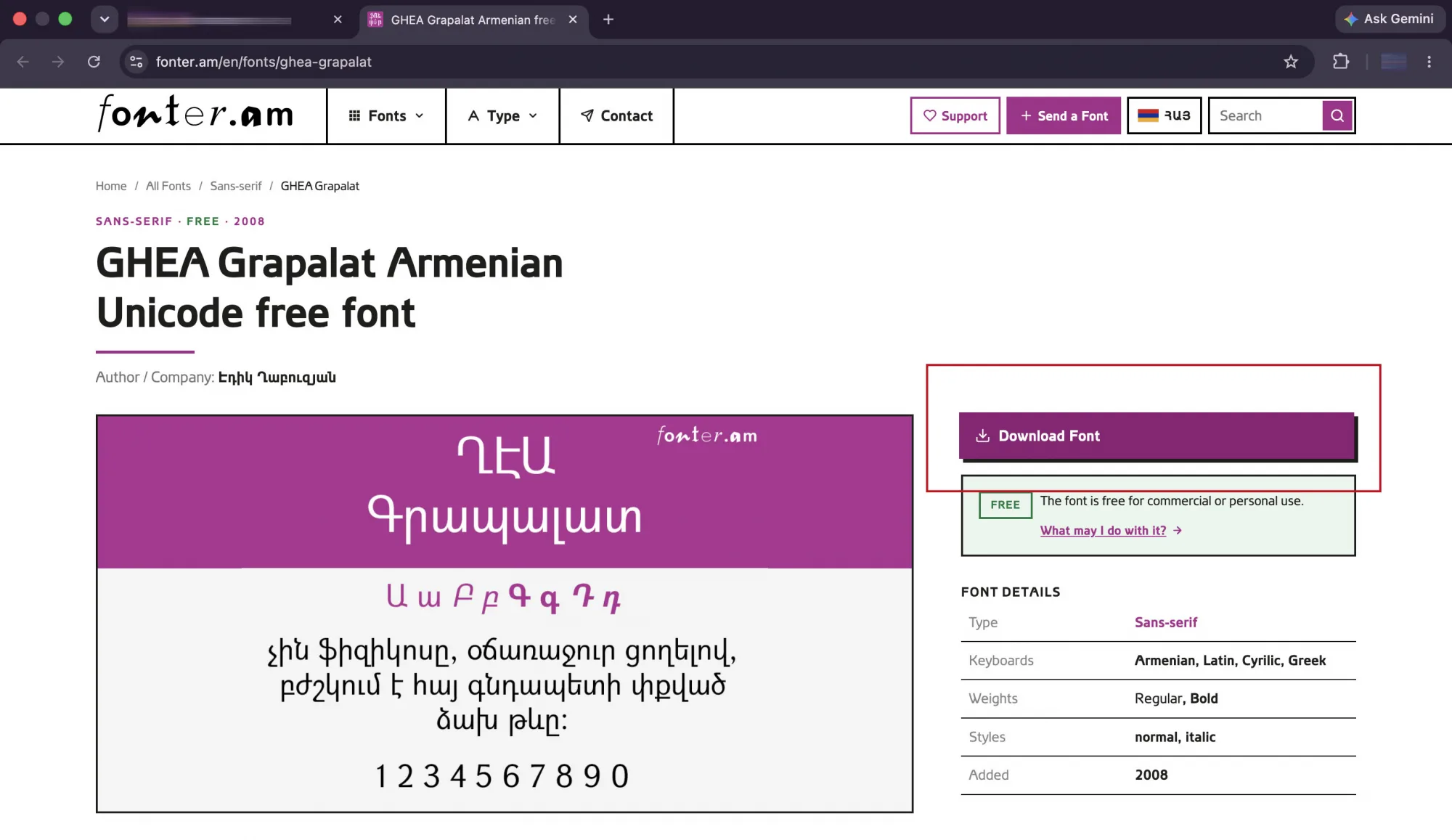
3. Find the download. Safari and Chrome save to the Downloads folder, and the download shows in the arrow icon near the toolbar.
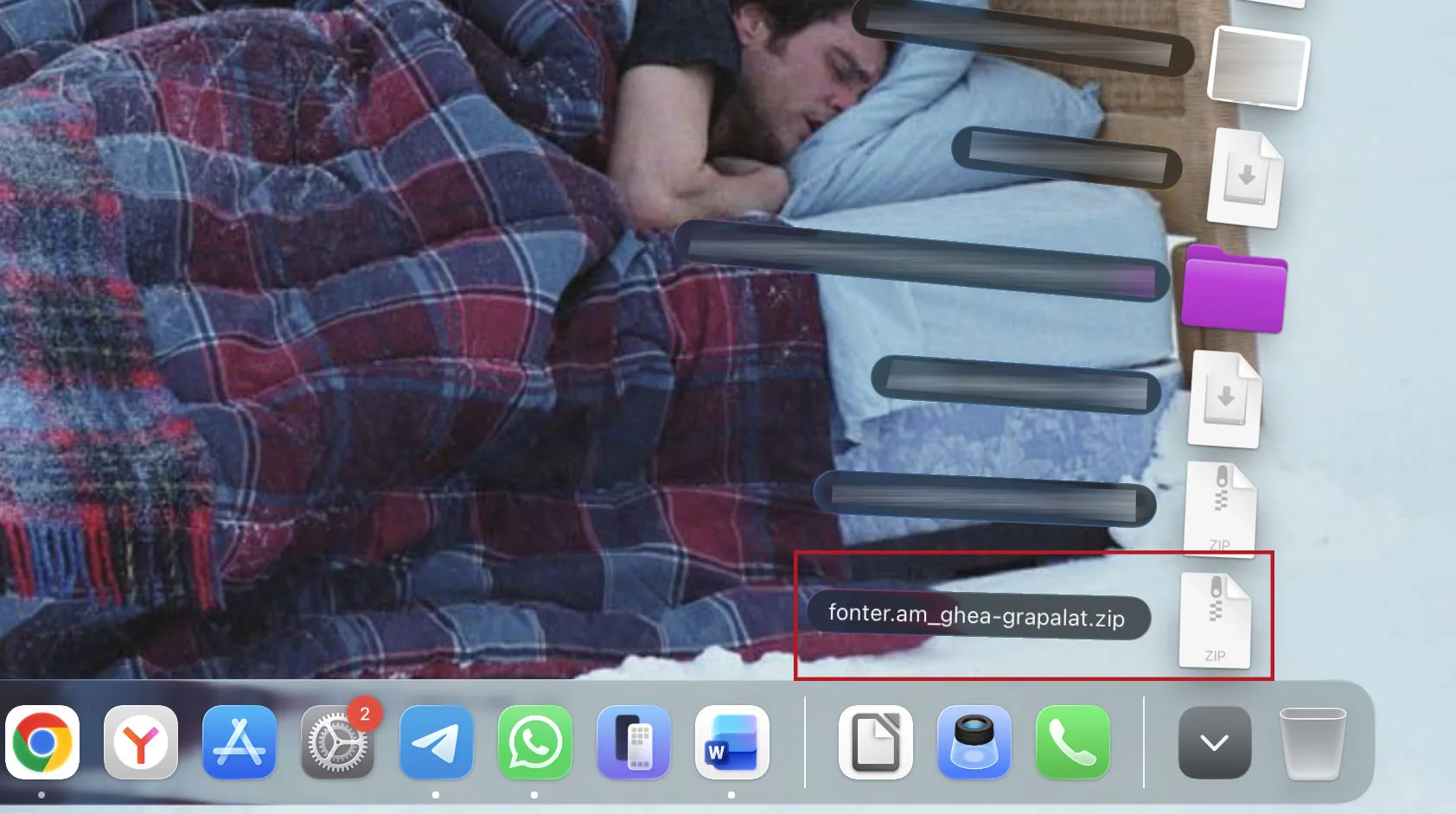
4. Unzip it. Double-click the ZIP. macOS extracts it into a folder next to the archive, no extra software needed.

5. Look inside. You want the files ending in .ttf (TrueType) or .otf (OpenType).
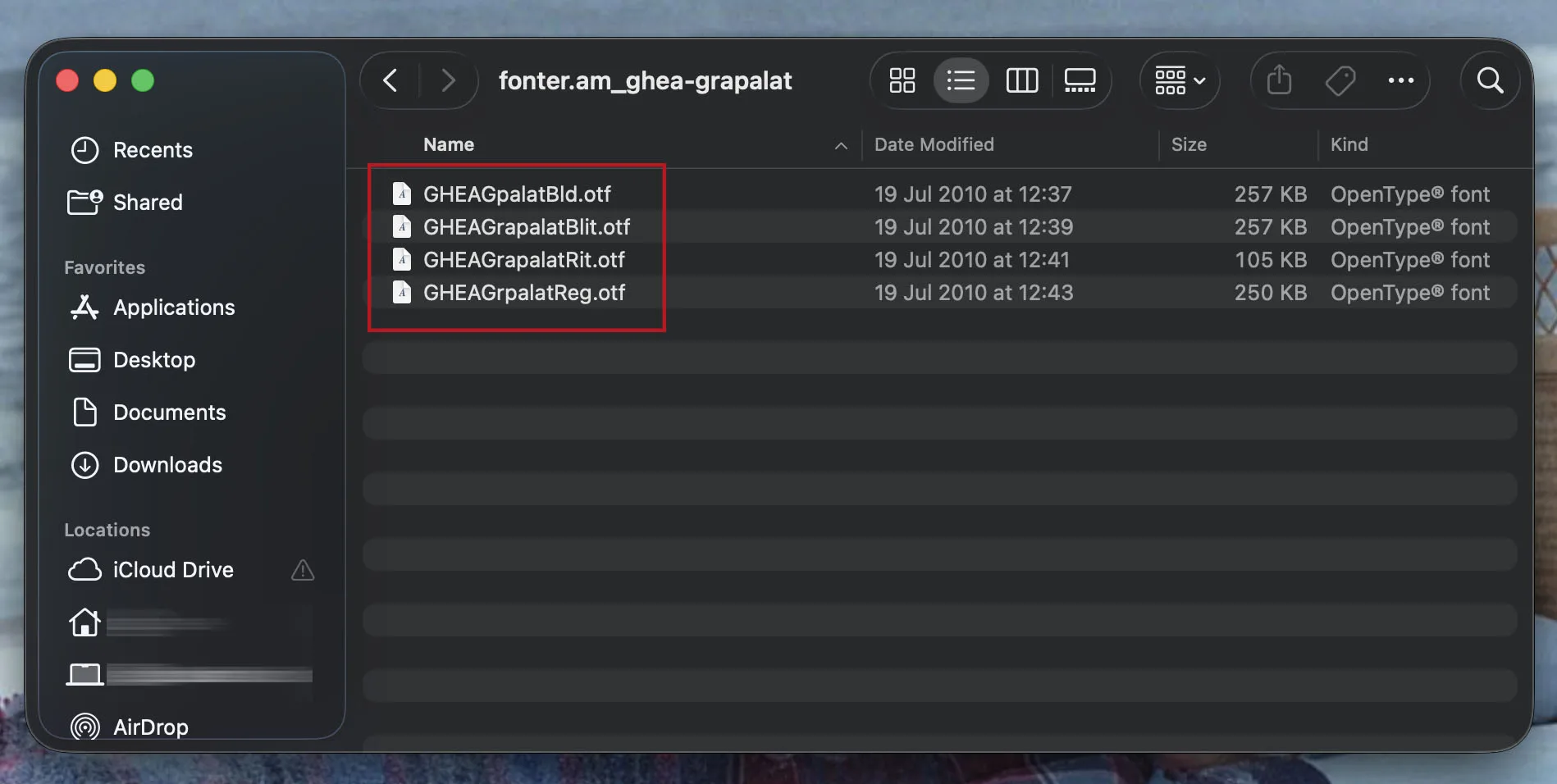
Tip: install every style that came in the archive. With only Regular installed, macOS fakes bold and italic by thickening and slanting the letters, and that synthetic version always looks worse than the cuts the designer actually drew. This matters more in Armenian than in Latin, because faked slanting distorts the curves of letters like ձ, ղ and ջ badly.
Install the Font with Font Book
Font Book is the font manager Apple builds into macOS. Nothing needs to be downloaded for this.
Method 1: double-click the font file
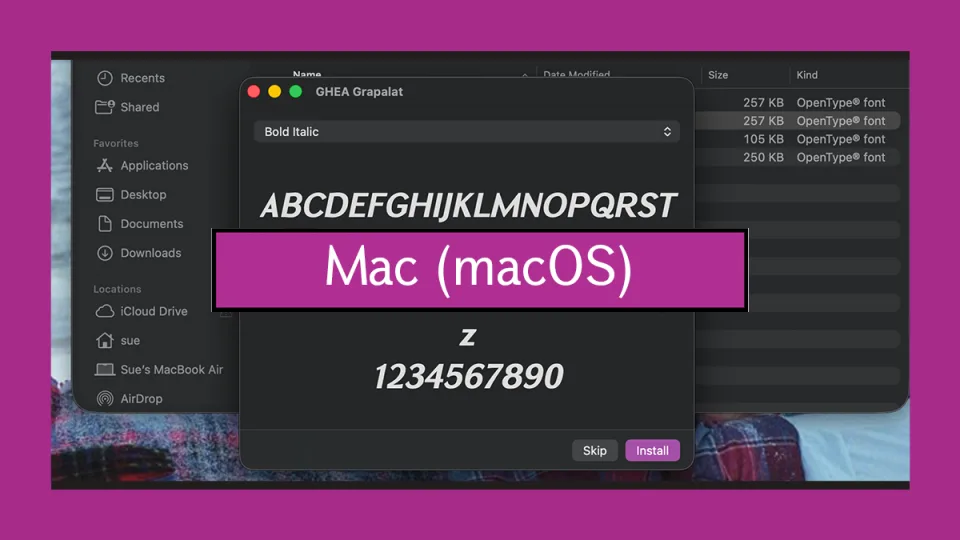
- Double-click the
.ttfor.otffile. - Font Book opens and shows a preview of the alphabet.
- Click Install Font.

Font Book checks the file for errors while it installs and warns you about duplicates, so this route is worth using even though it is not the fastest.
Method 2: drag several fonts in at once
- Open Font Book from Launchpad or Spotlight.
- Drag the
.ttfand.otffiles straight into the Font Book window.
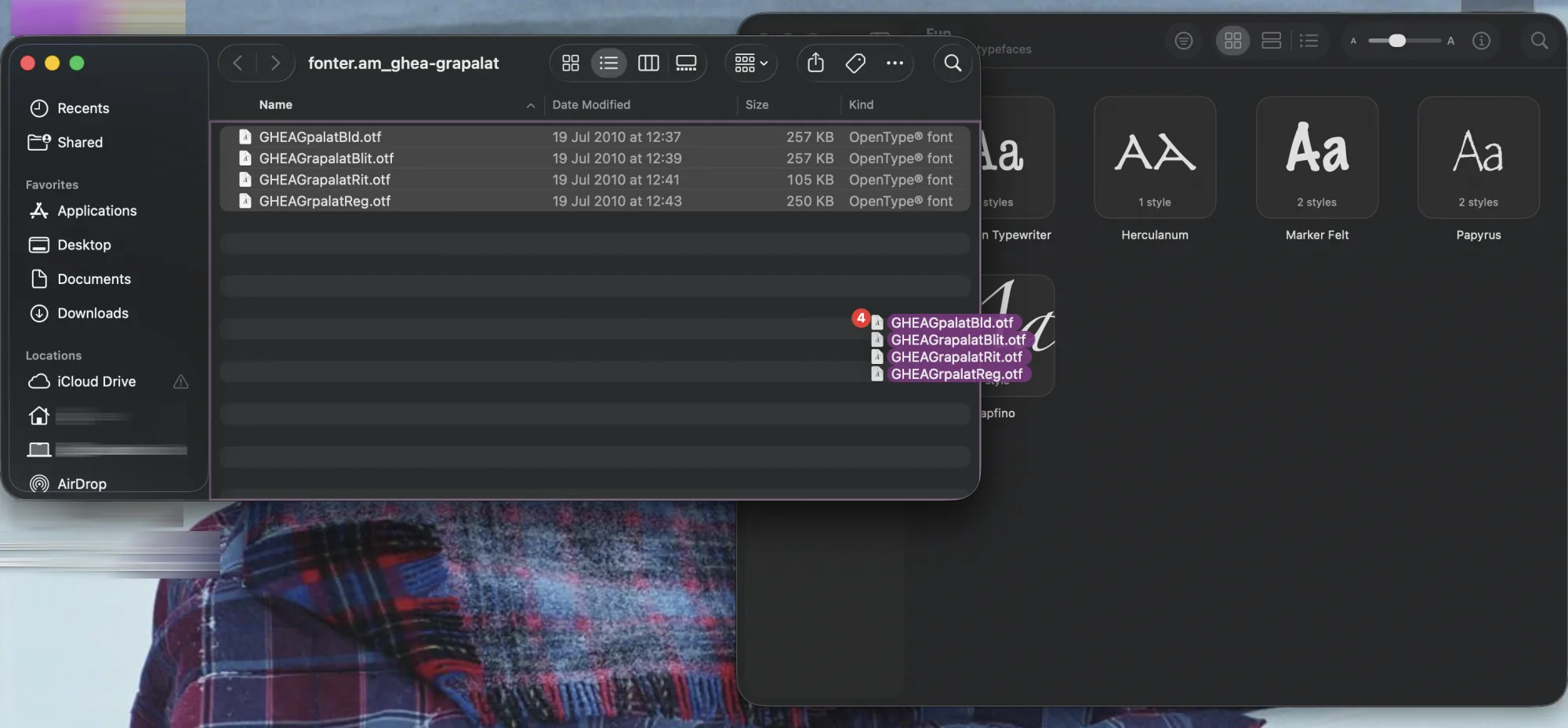
This is the one to use for a family with many weights. Select them all first: Cmd+click picks individual files, Shift+click takes a range, Cmd+A takes everything in the folder.
Method 3: copy into the Fonts folder
For anyone who prefers the file system:
- Just for you:
~/Library/Fonts - For everyone on the Mac:
/Library/Fonts(this one asks for an administrator password)
Open Finder, press Cmd+Shift+G, paste the path, and drop the font files in.
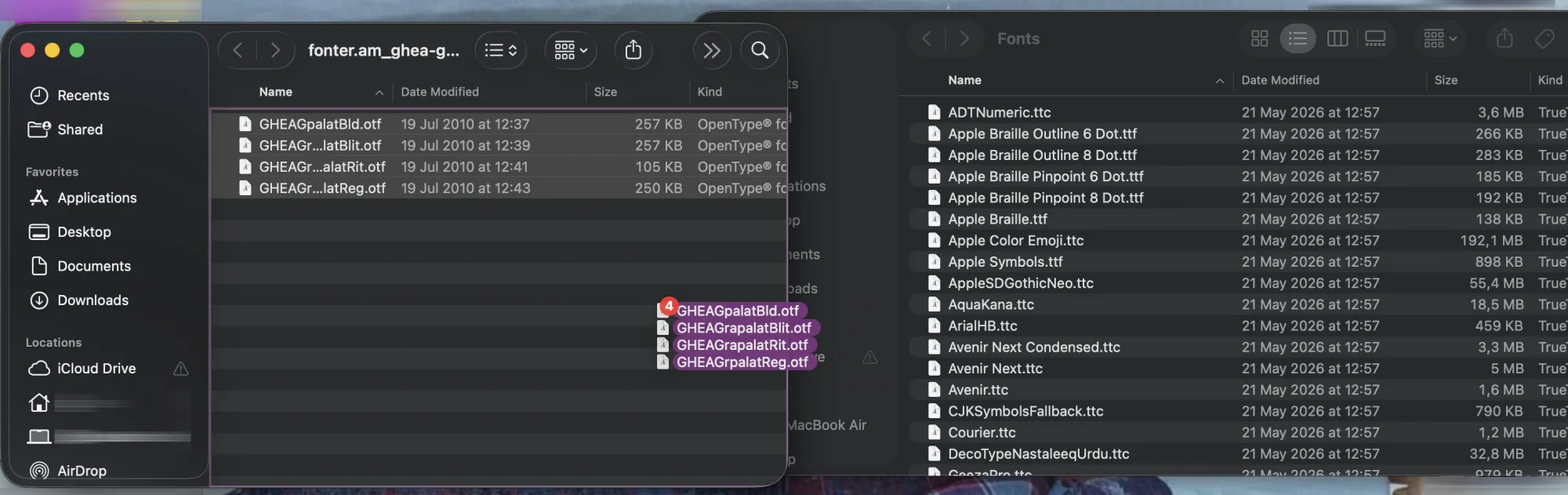
Which location should you pick? ~/Library/Fonts for your own work. Use /Library/Fonts when several people share the MacBook, or when a font has to be visible to every user account.
Check That the Font Installed
Open Font Book and type the font name into the search field. If it appears, macOS has it.

A font shown in Font Book but missing from an app usually means one thing: the app was already open when you installed it. Apps read the font list at launch. Quit the app completely with Cmd+Q, reopen it, and the font will be there. Closing the window is not enough, since the app keeps running.
Validate a Font That Misbehaves
If a font looks broken or refuses to install, Font Book can inspect it.
- Open Font Book.
- Select the font.
- Choose File → Validate Font.
Font Book reports errors, warnings, or a clean result. It can also tidy up a cluttered library through File → Resolve Duplicates, which deactivates or removes the copies it finds.
macOS handles TrueType (.ttf), OpenType (.otf), variable fonts and font collections (.ttc). Old PostScript Type 1 fonts are no longer supported on current versions of macOS, so if a very old Armenian font refuses to load, that is usually the reason.
Use the Font in Pages
- Open Pages and create or open a document.
- Select some text, or put the cursor where you plan to type.
- Open the Format panel on the right, then the Font dropdown.
- Pick your Armenian font and start typing.
Keynote and Numbers behave the same way.
Before sending the file to someone else, remember that a Pages document does not carry the font inside it. On a Mac without the font, Pages substitutes another and your layout shifts. For anything leaving your machine, export to PDF through File → Export To → PDF, which locks the typography in place.
Use the Font in Microsoft Word
- Install the font, then quit Word with Cmd+Q if it was open.
- Reopen Word.
- Pick your Armenian font from the font dropdown.

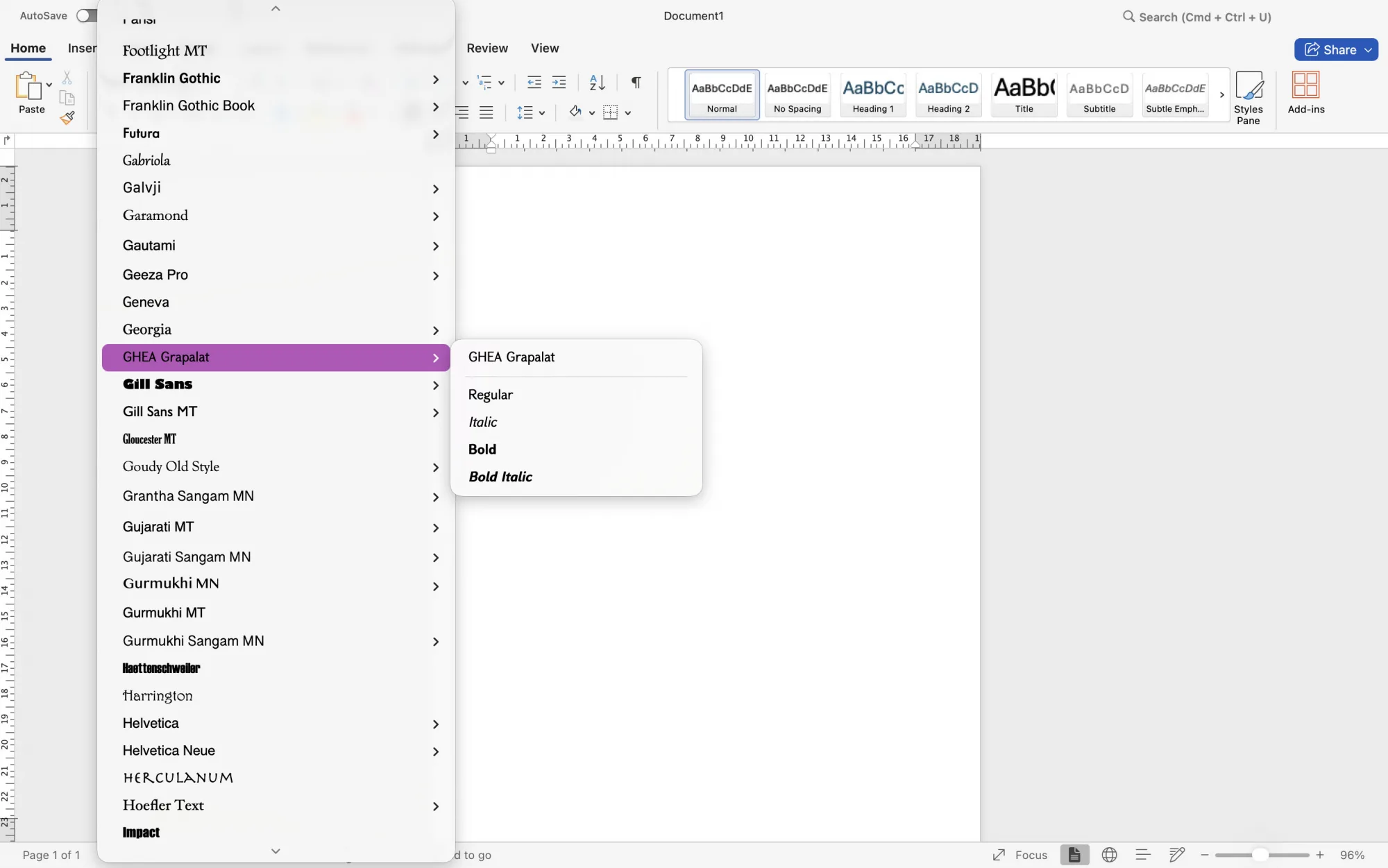
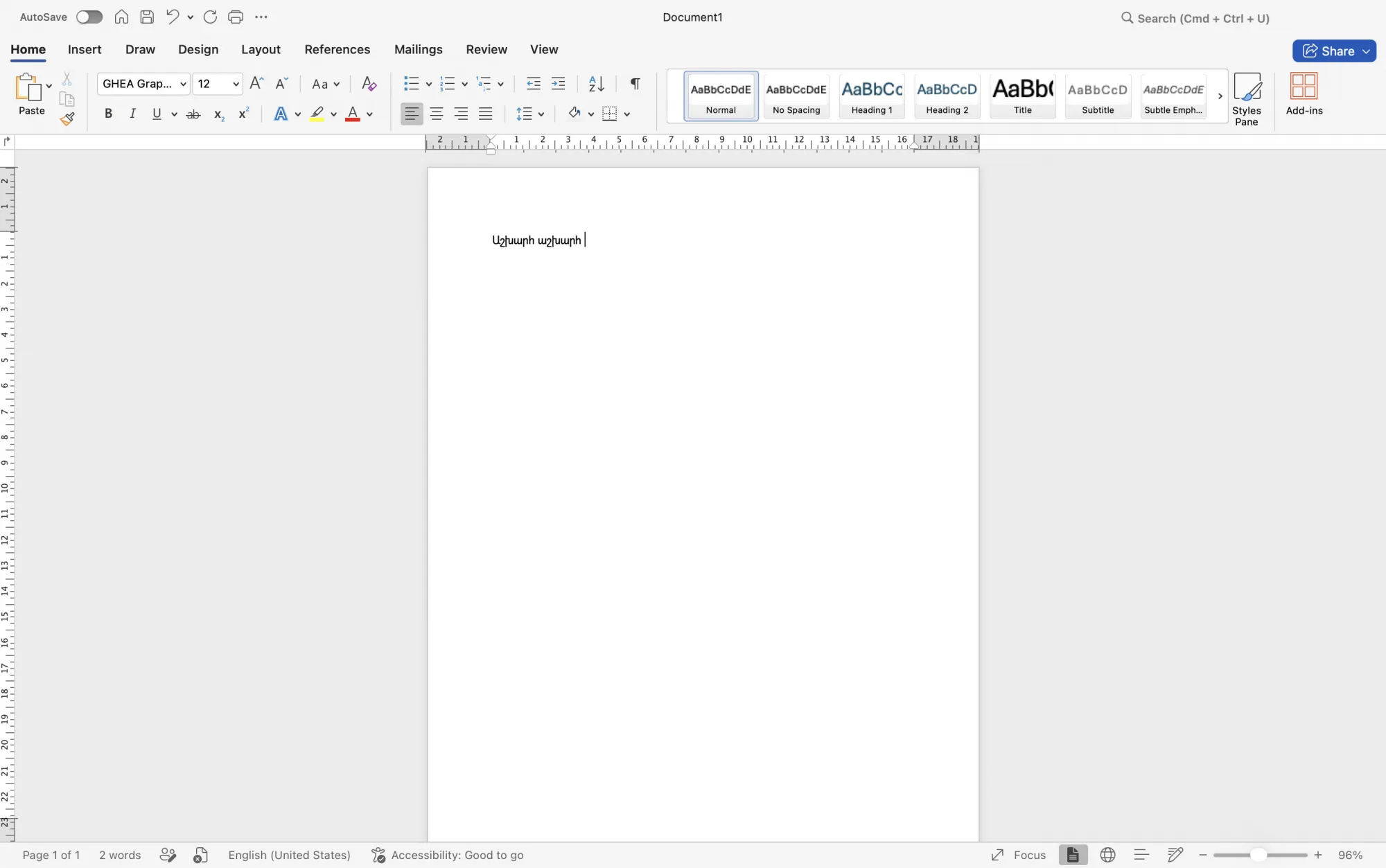
Word on an Apple Mac cannot embed fonts into a document the way Word on Windows can. Sending a .docx to someone who lacks the font means they see a substitute. PDF is the reliable answer for sharing.
Use the Font in Photoshop, Illustrator and InDesign
Adobe apps read the system font list and refresh it only at launch.
- Install the font in Font Book.
- Quit the Adobe app completely and reopen it.
- Select the Type Tool, choose the font, and type.
If a font still refuses to appear after a restart, check whether Adobe Fonts is filtering the font list in the character panel, and make sure the filter is cleared.
Use the Font in Canva
Canva runs in the browser and ignores the fonts on your Mac, so installing does nothing for it. Instead, upload the font file:
- Open your Canva project.
- Go to Brand Kit or the font upload area.
- Upload the
.ttfor.otffile. - Select it in your design.
Uploading your own fonts is a Canva Pro feature.
If You Cannot Type Armenian: Add the Keyboard Layout
A font decides how letters look. Which letters appear when you press a key is the keyboard layout, and that is a separate setting. If your typing comes out in Latin no matter which font is selected, add the Armenian layout:
- Open System Settings → Keyboard.
- Next to Input Sources, click Edit.
- Click +, choose Armenian, pick a layout, and add it.
- Switch layouts from the menu bar flag, or with Ctrl+Space.
macOS offers several Armenian layouts. Armenian — QWERTY maps letters onto the Latin keys they sound like, which is the easiest if you already touch-type in English. Western and Eastern follow the traditional Armenian typewriter arrangements, which is what you want if you learned to type in Armenia.
Remove a Font
- Open Font Book.
- Select the font.
- Right-click and choose Remove or press Delete.
To keep a font without seeing it in every menu, use Disable instead. It stays installed and can be switched back on later.
The Short Version
- Download the ZIP from the font page and double-click it to unzip.
- Select all the
.ttfand.otffiles. - Drag them into Font Book, or double-click and hit Install Font.
- Quit any open app with Cmd+Q, reopen it, and pick the font.
Once installed, the font is available in every Mac app that reads the system font list.