
Can Armenian fonts from fonter.am be used on an iPhone or iPad? Yes. iOS handles fonts differently from Windows, and there is one extra tool involved, but the whole process takes a few minutes: download the font, install it through a free font manager app, and pick it in any app that supports custom fonts.
On Windows, a Mac or Android? The same guide is here for Windows, Mac and Android.
This guide covers every step with screenshots: downloading the ZIP from fonter.am, finding it on your iPhone, extracting it, installing the font through Fontcase, confirming the installation, and using the font in Pages, CapCut, Picsart and Canva.
Download the Font on iPhone / iPad
Fonts from fonter.am download as a ZIP archive with the actual .ttf or .otf font files inside.
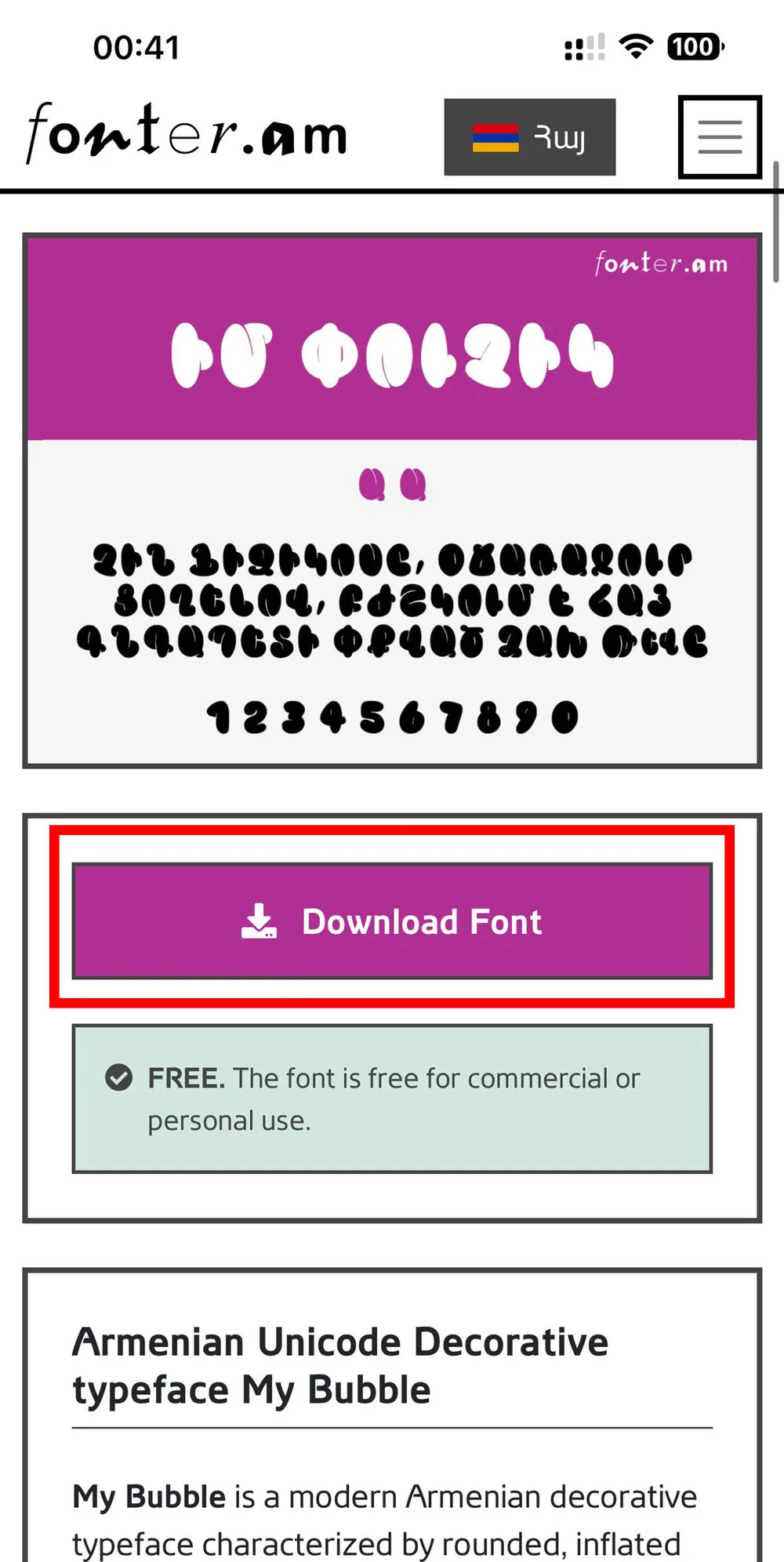
Step 1: Tap the Download Font button
Open the font page on fonter.am in Safari and tap Download Font.
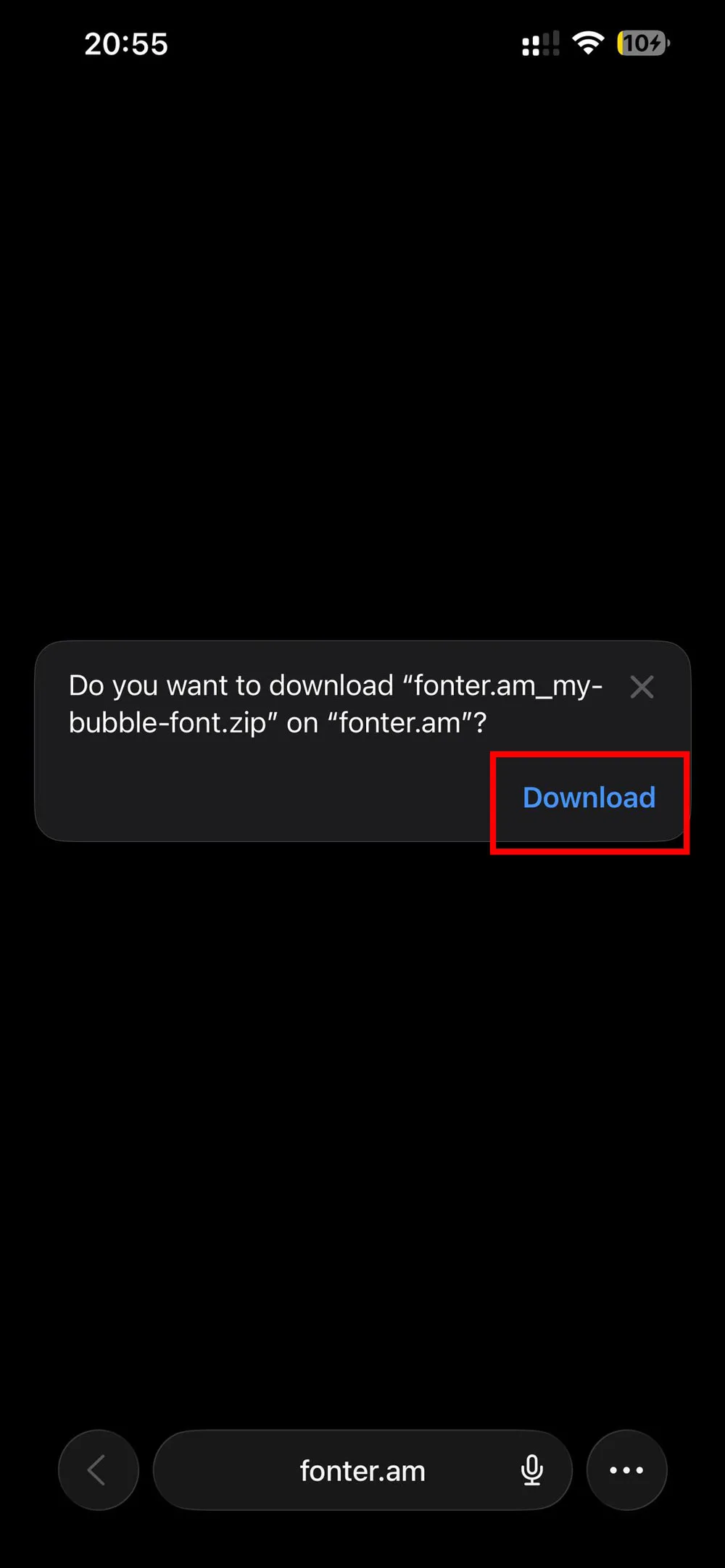
Step 2: Confirm the download
Safari asks whether you want to download the file. Tap Download. Chrome and other browsers behave the same way. The file lands in your Downloads folder inside the Files app, or in the browser's own downloads area.

Step 3: Find the downloaded ZIP
Open Safari's downloads list (the arrow icon next to the address bar) or the Files app. The file is named after the font and ends in .zip.
Step 4: Extract the ZIP
Tap the ZIP file once. iOS extracts it right there, into a folder or directly into Downloads. Open the result and make sure you can see one or more .ttf or .otf files. Those are the fonts themselves.
Install a Font Manager App (Fontcase)
iOS has no built-in way to install a downloaded font, so a small helper app does that part. We tried the popular options and settled on Fontcase – Manage Your Type, formerly known as xFonts. It is free, simple, and does nothing beyond managing fonts.
Note: this is a one-time setup. If Fontcase or another font manager is already on your device, skip ahead to importing.
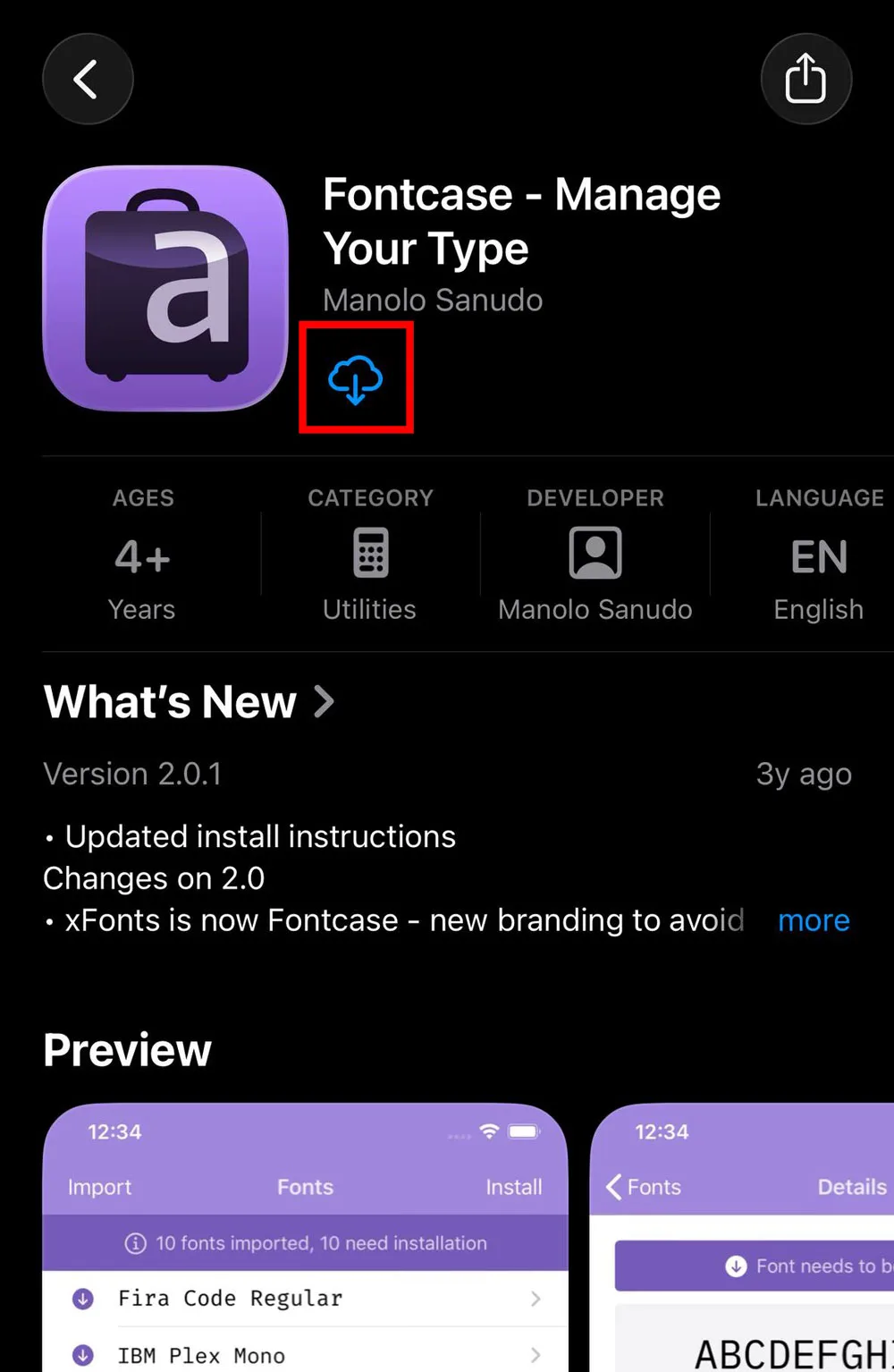
Step 5: Download Fontcase
Open the App Store, search for Fontcase, and install it. Here is the direct link: Fontcase on the App Store.
Import the Font into Fontcase
Have the extracted .ttf or .otf file ready in your Downloads folder before this part.
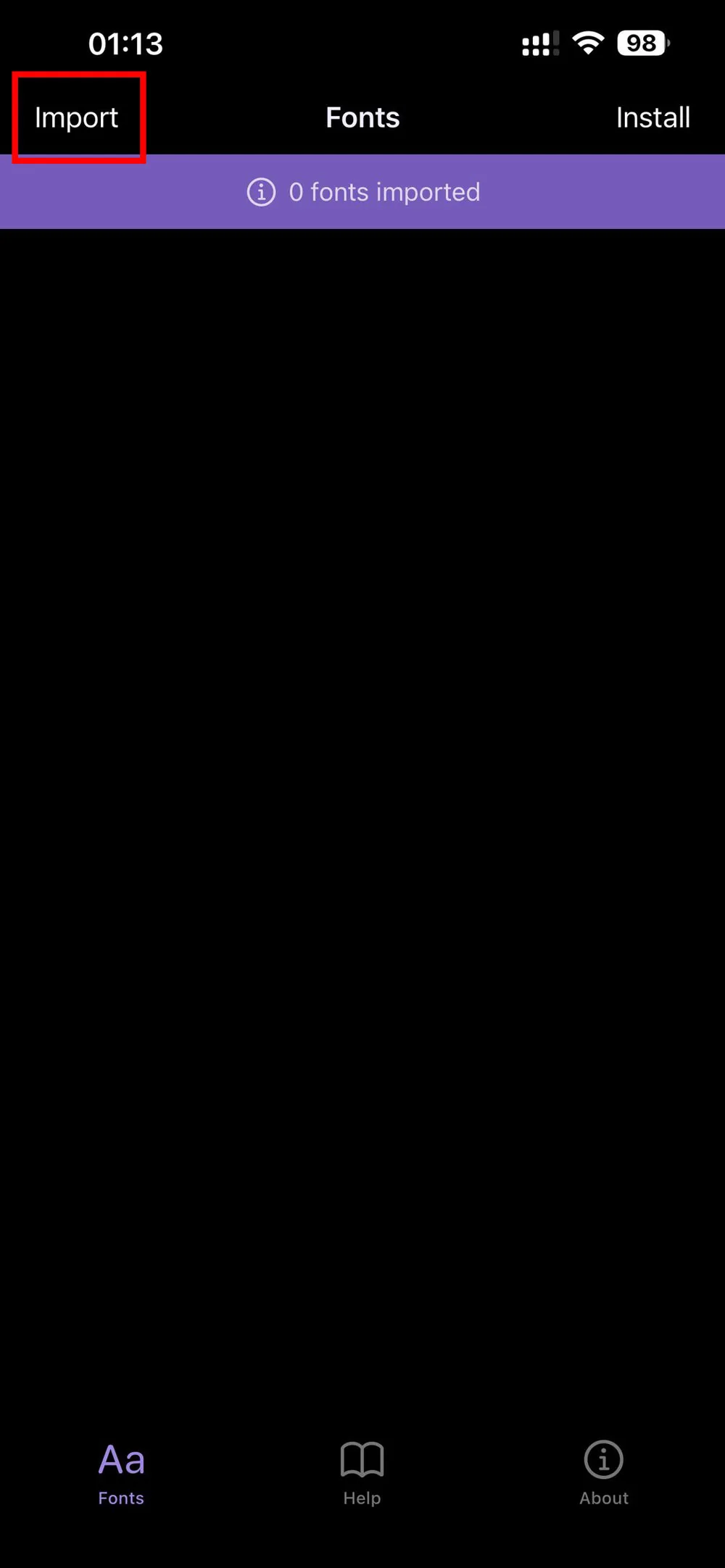
Step 6: Open Fontcase and tap Import
Open Fontcase and tap the Import button at the top.
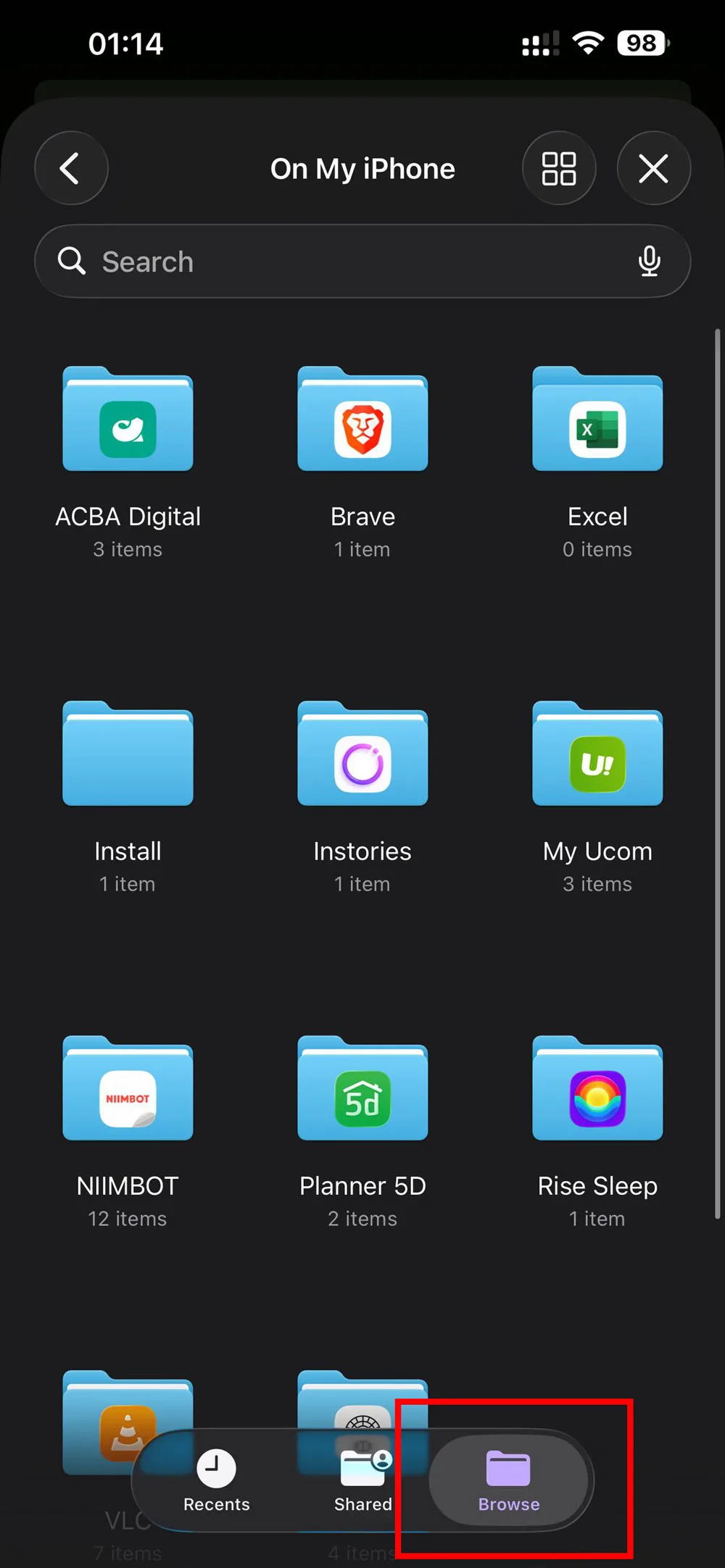
Step 7: Browse your files
In the file picker, tap Browse.
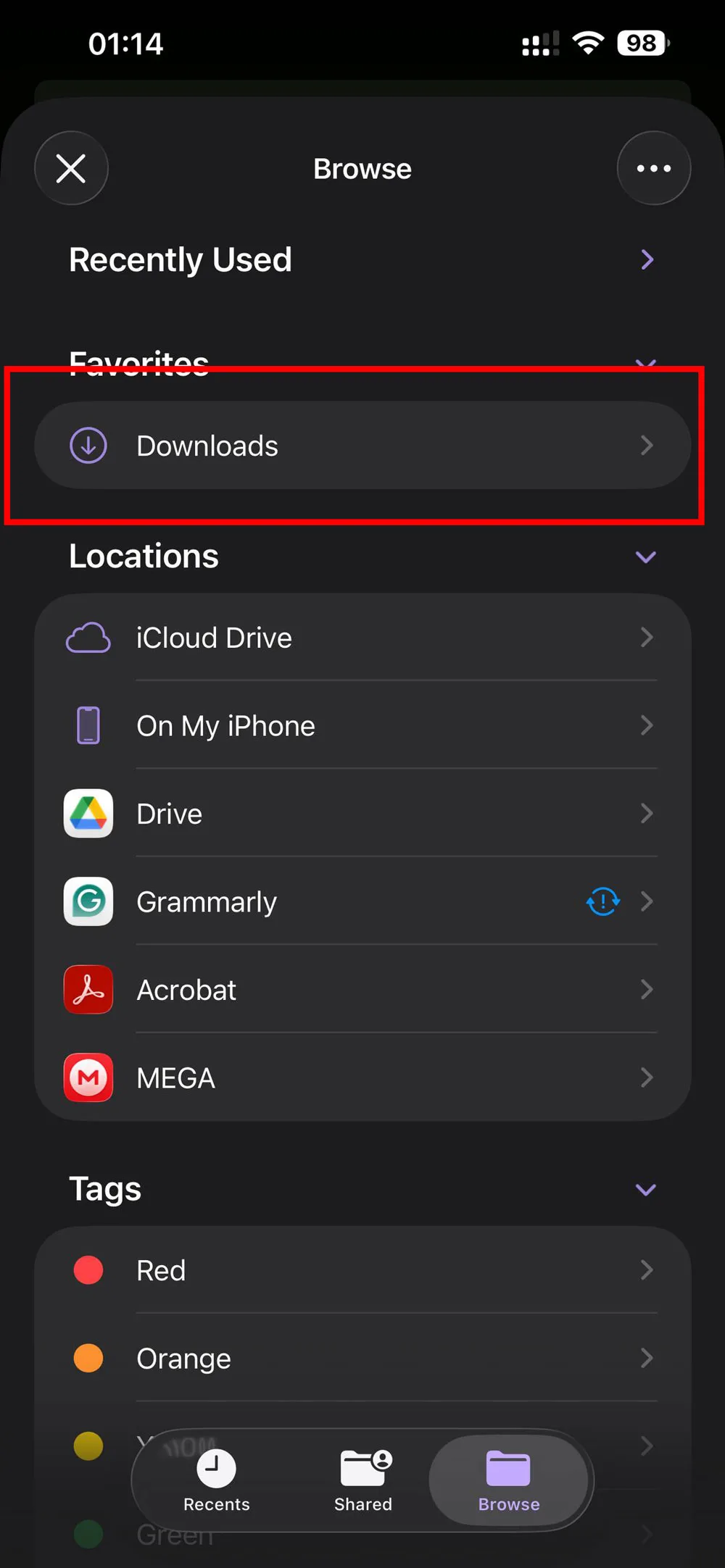
Step 8: Open the Downloads folder
Go to Downloads, or wherever you extracted the ZIP.
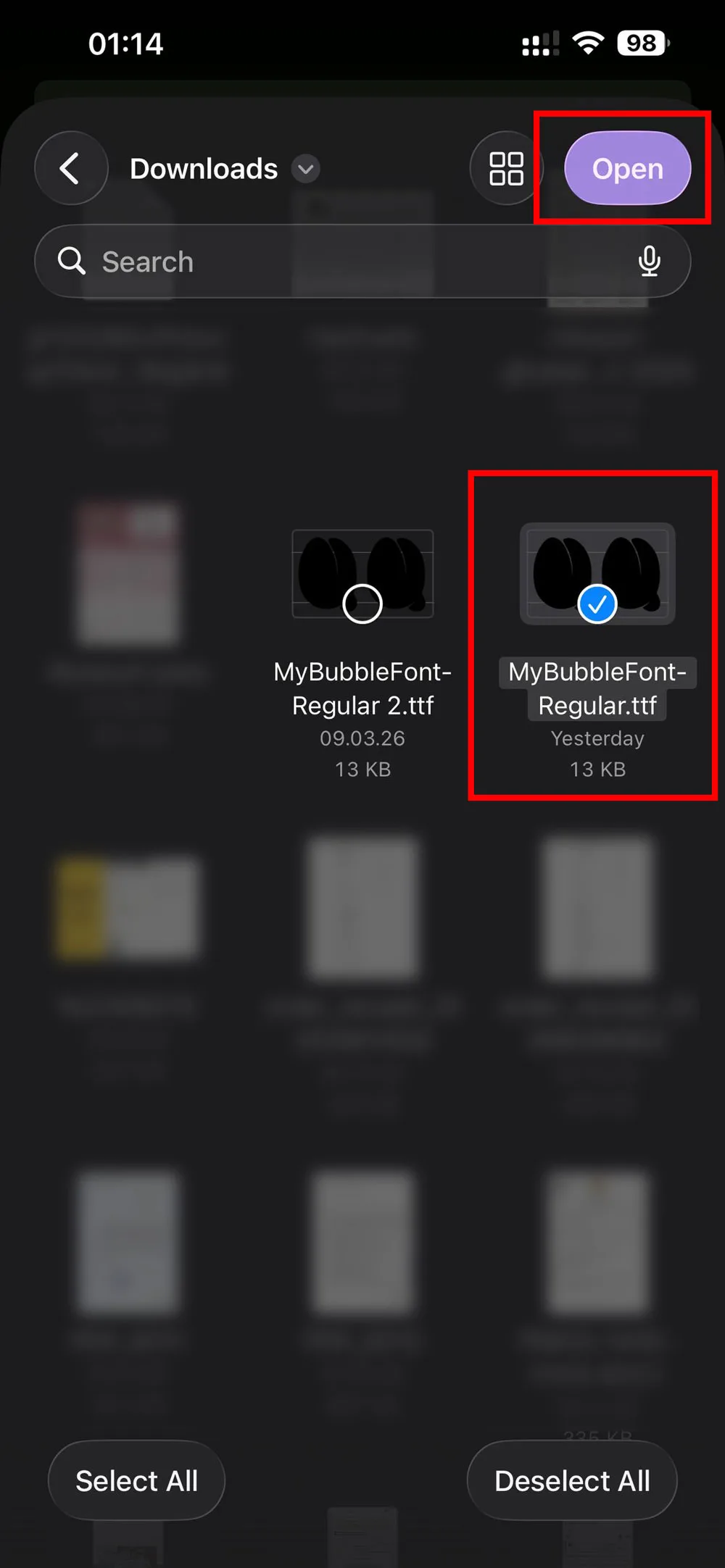
Step 9: Select the font file
Select the font file and tap Open. Fontcase imports it and it is ready to install.
Install the Imported Fonts
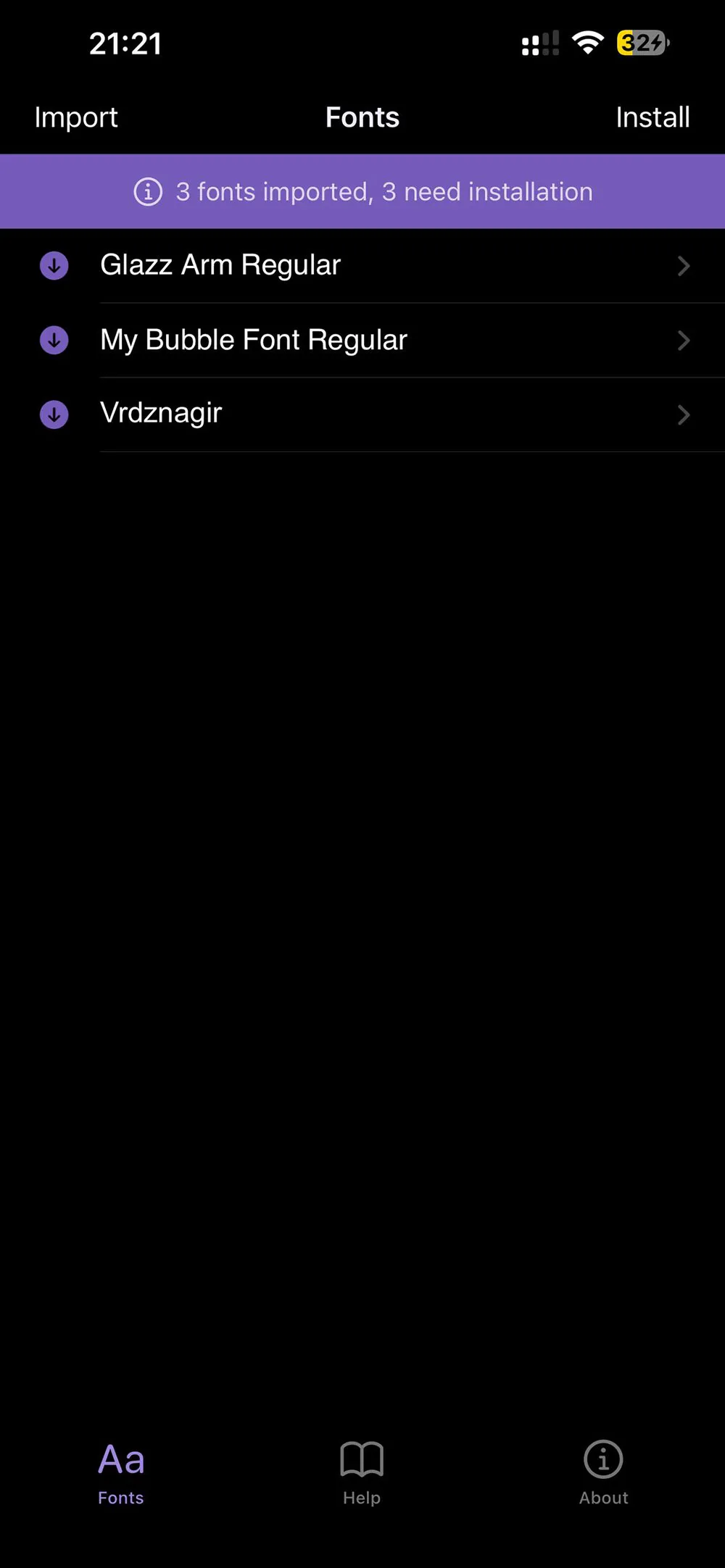
Step 10: Check the imported list
Everything you imported appears in the Fontcase list.
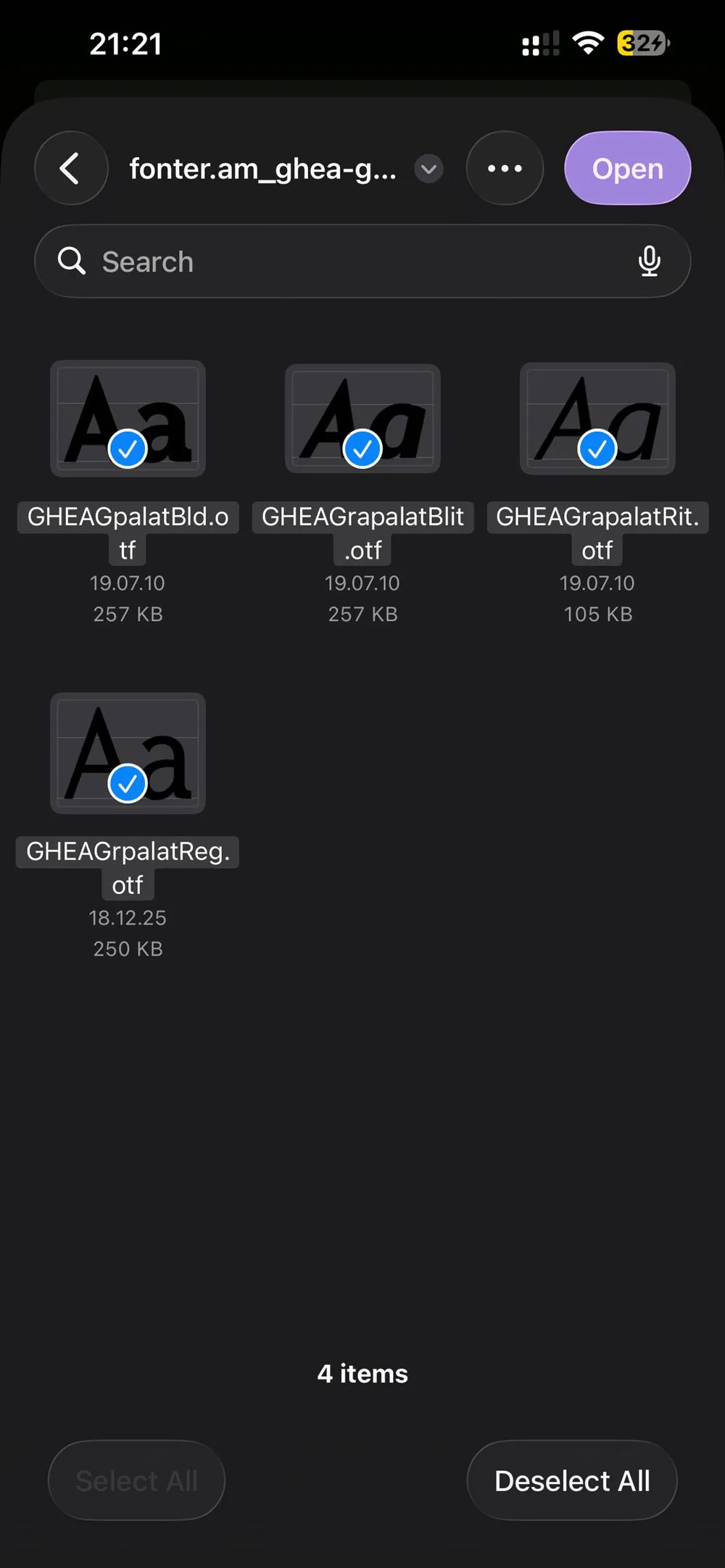
Step 11: Import every style of the family
If the font came with Regular, Bold and Italic files, import them all. Apps need the separate files to render each weight properly, and a lone Regular file means no true bold or italic anywhere.
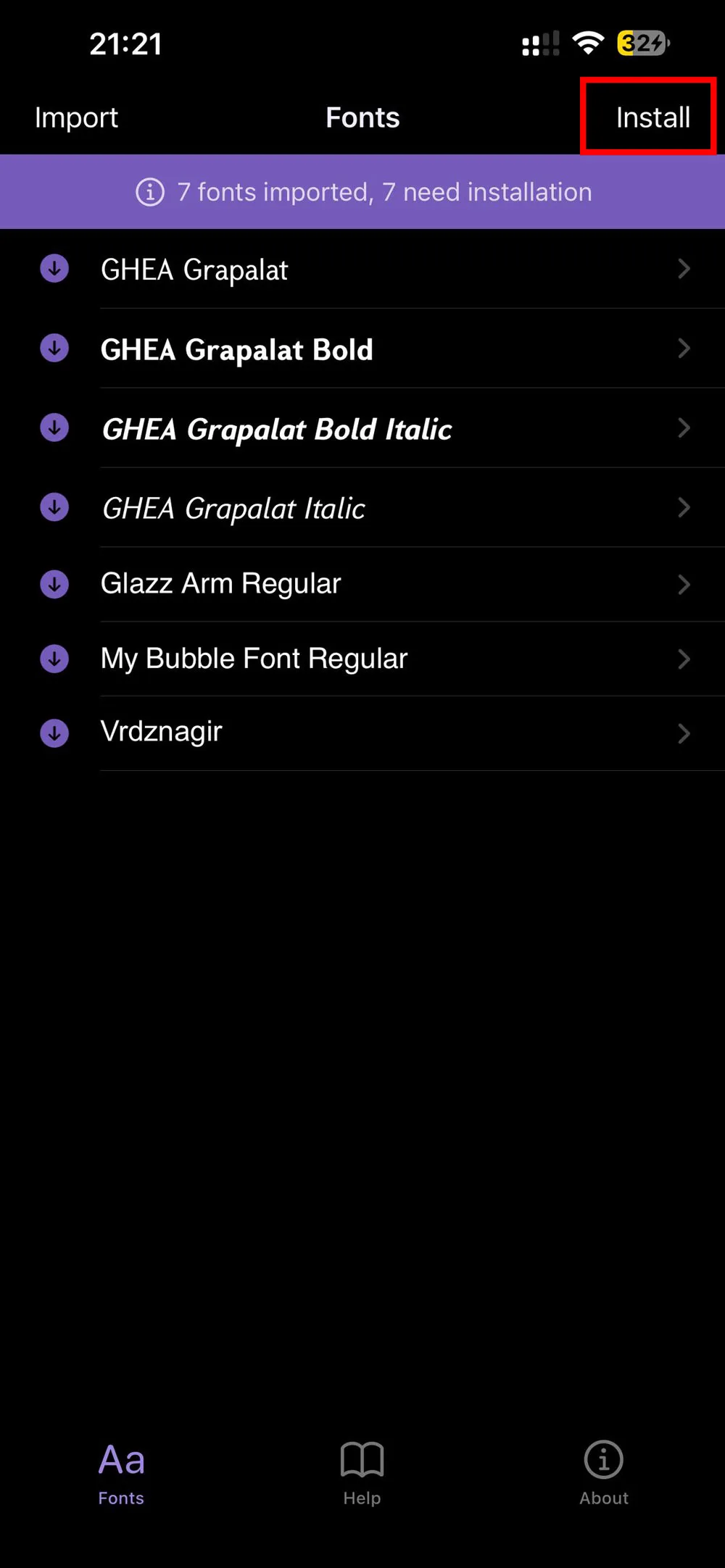
Step 12: Tap Install
With everything imported, tap Install at the top. iOS installs fonts through something called a configuration profile, and the next section walks through its screens. There are a few of them, all short.
Approve the Font Profile in Settings
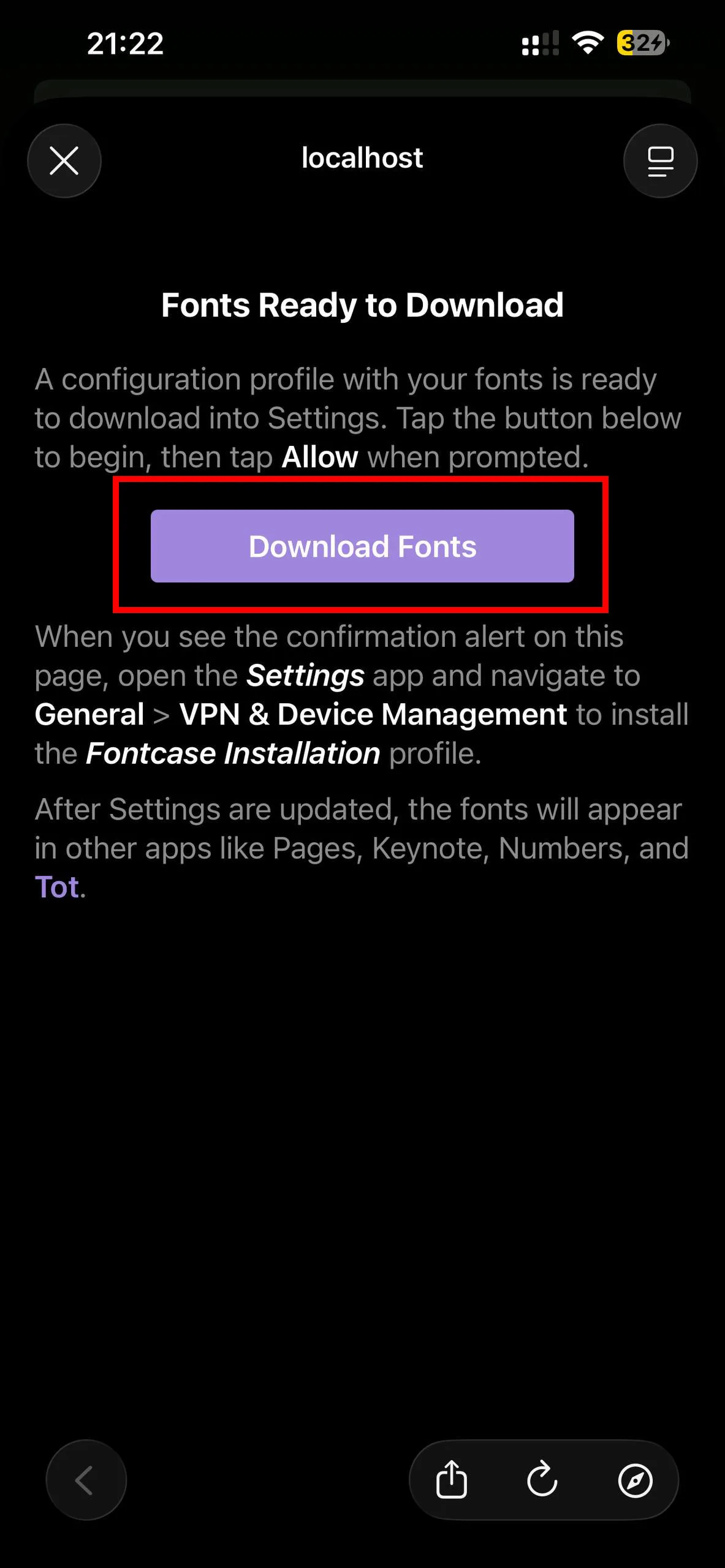
Step 13: Tap Download Fonts
A new screen opens in Fontcase. Tap Download Fonts to generate the profile.
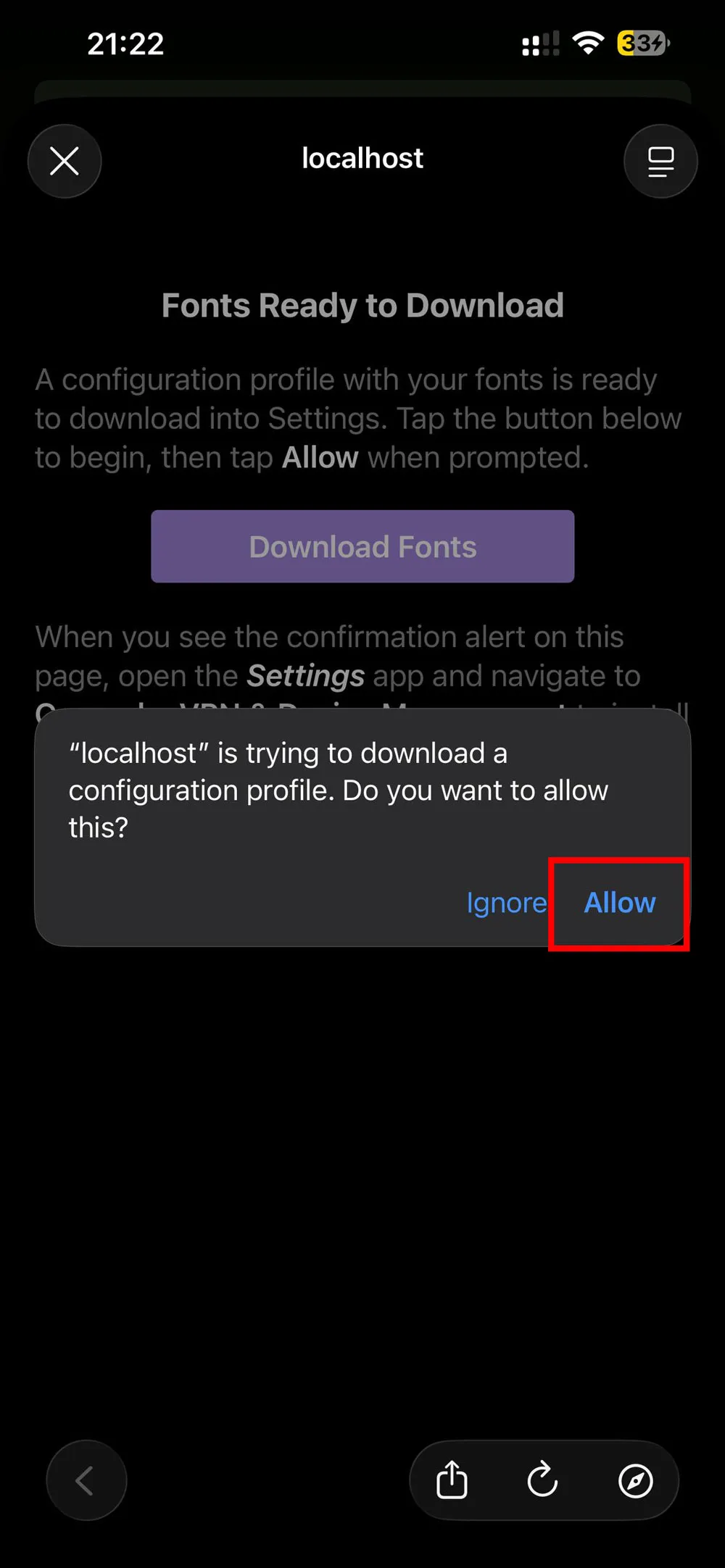
Step 14: Allow the download
iOS asks for permission. Tap Allow.
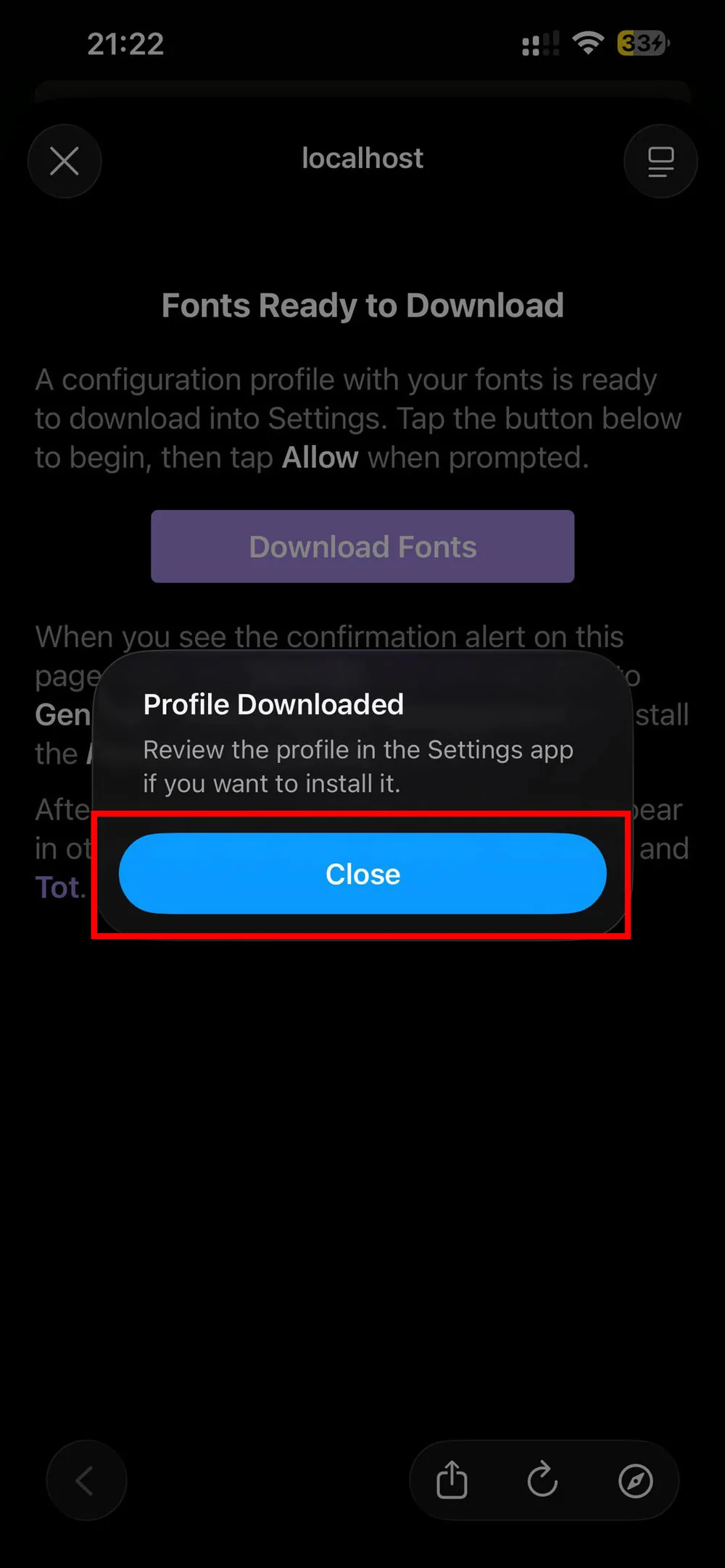
Step 15: Close the confirmation
A popup confirms the profile has been downloaded. Tap Close.
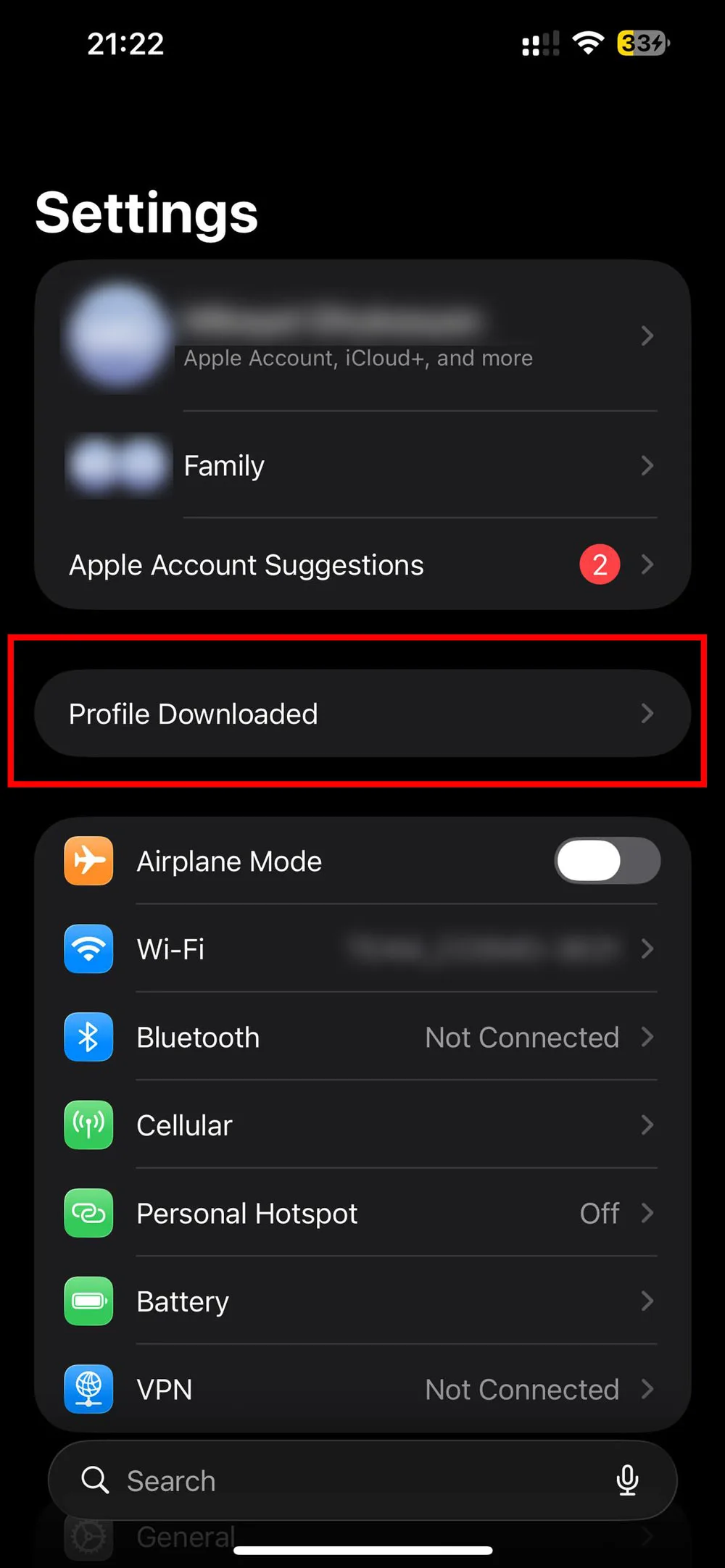
Step 16: Open Settings
Open the Settings app. Near the top there is a new entry, Profile Downloaded. Tap it. If it is not there, look under General → VPN & Device Management.

Step 17: Tap Install
On the profile screen, tap Install in the top right corner.

Step 18: Enter your passcode
iOS asks for your device passcode before it will touch a profile. Enter it.
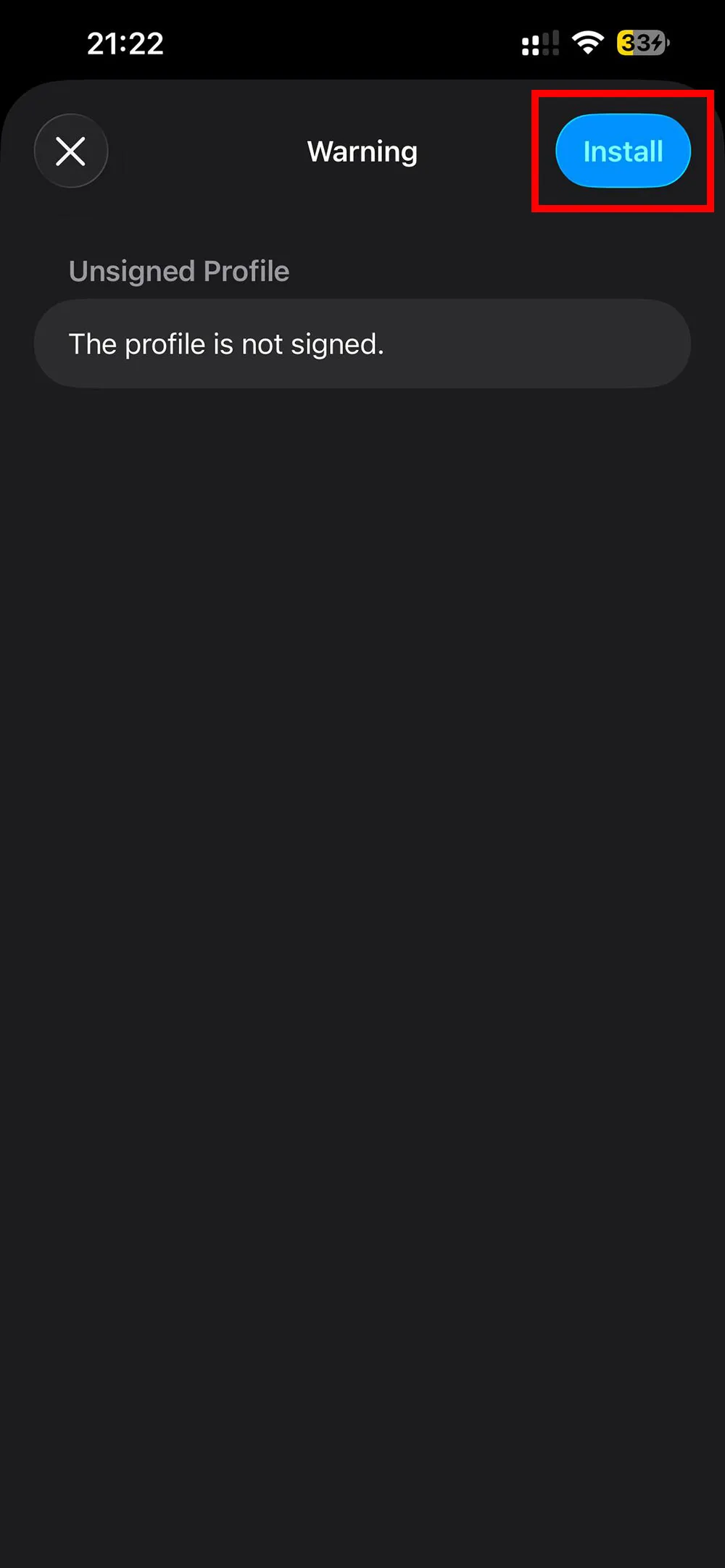
Step 19: Accept the unsigned profile warning
iOS warns that the profile is not signed. Font profiles from font manager apps look like this, and the warning is expected. Tap Install.
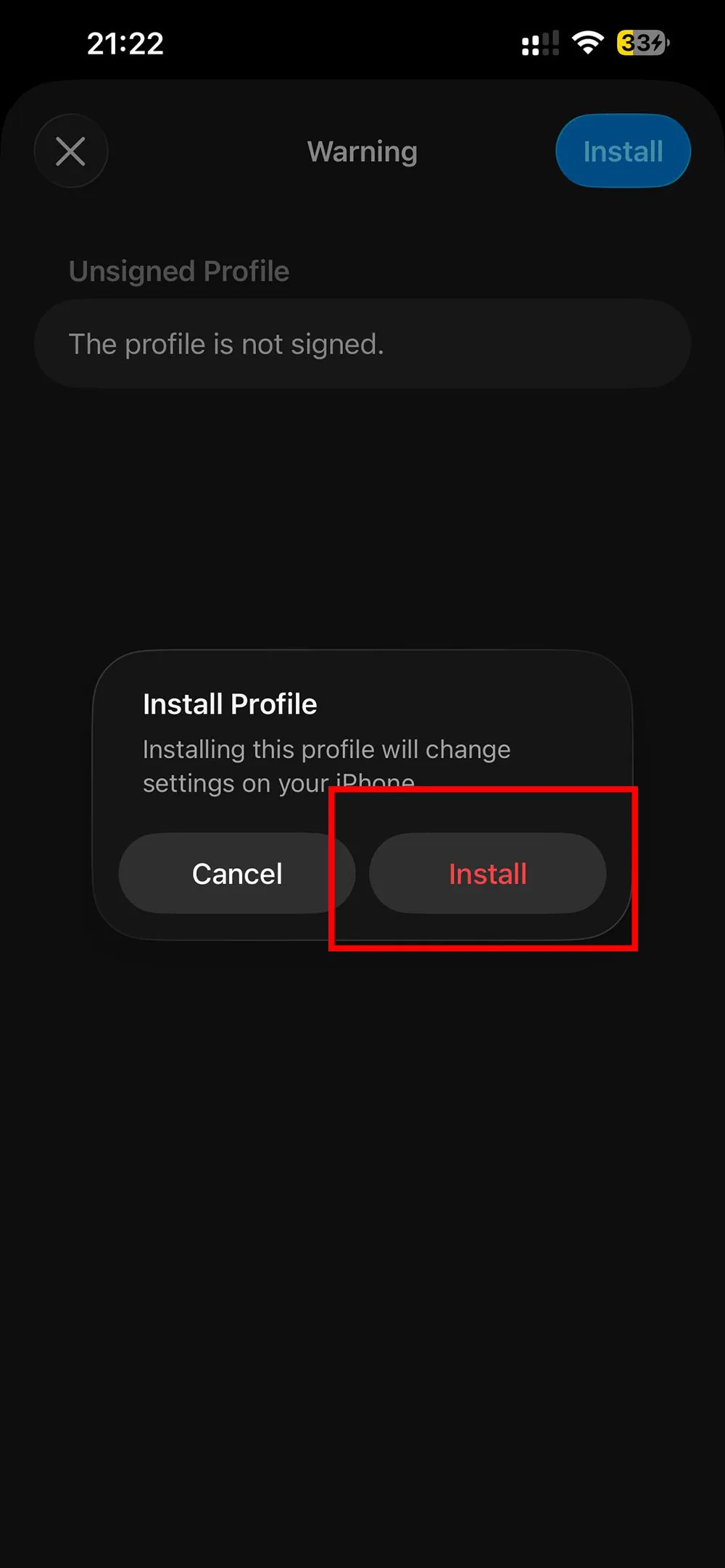
Step 20: Confirm one last time
One more popup. Tap Install again.
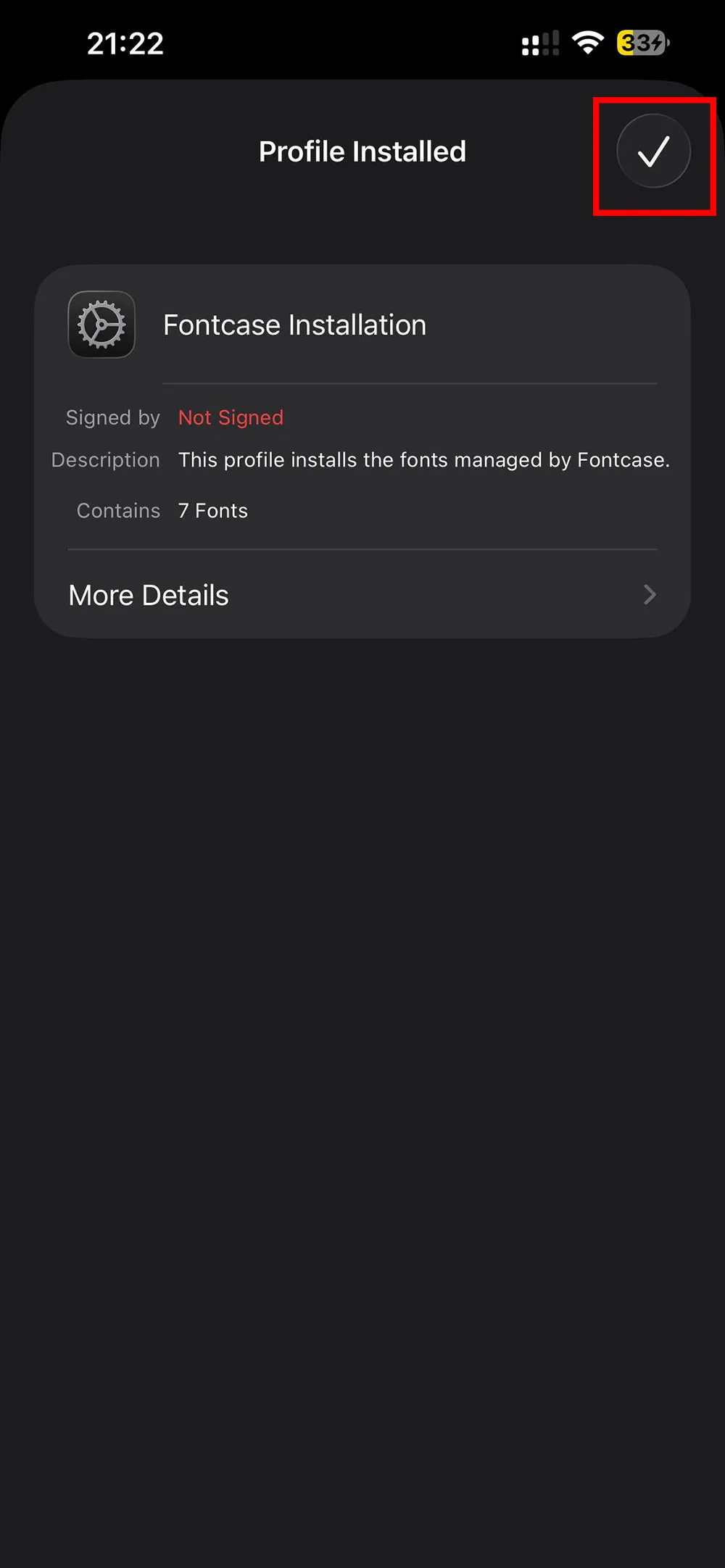
Step 21: Done
When the screen says Profile Installed, the fonts are on your device and ready to use.
Confirm the Fonts Are Installed (Optional)
Want to double-check, or see the full list of what got installed?
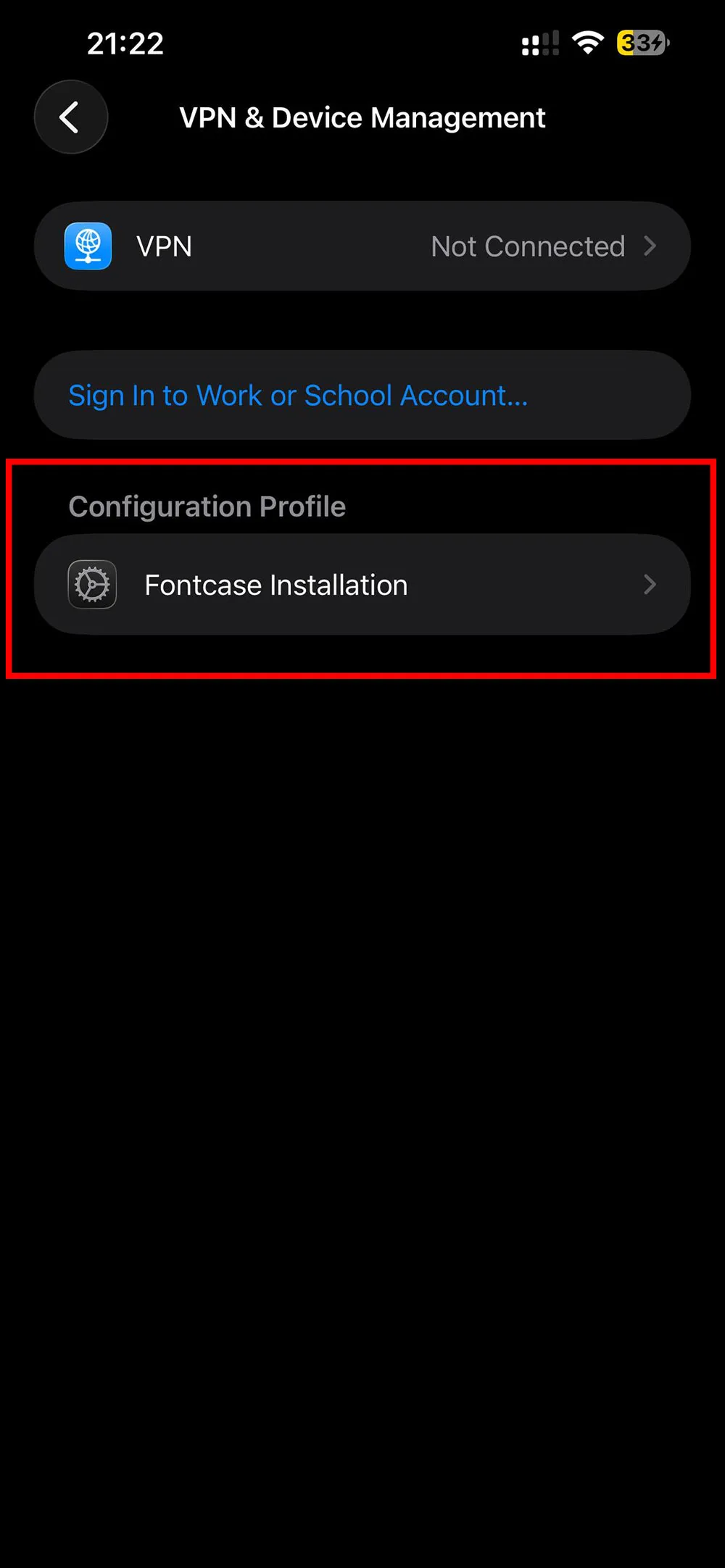
Step 22: Open VPN & Device Management
Go to Settings → General → VPN & Device Management. A profile named Fontcase Installation is listed there.
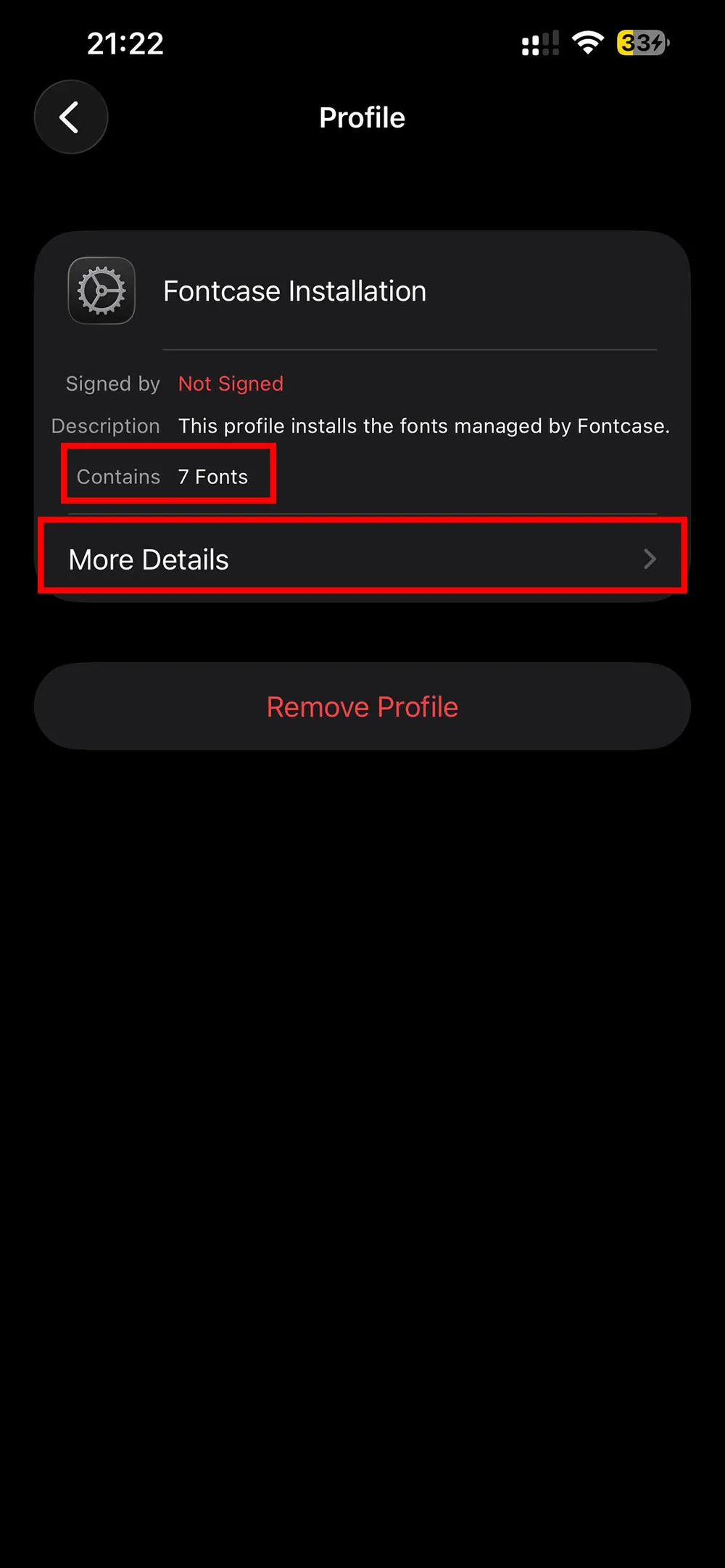
Step 23: Open the profile
Tap it to see the details.

Step 24: Check the font list
Scroll down. Every font you installed is listed here. This same screen is where you would remove the profile later, which uninstalls all of its fonts at once.
Use the Font in Pages

Step 25: Open a supported app
Open Pages and create a new document.
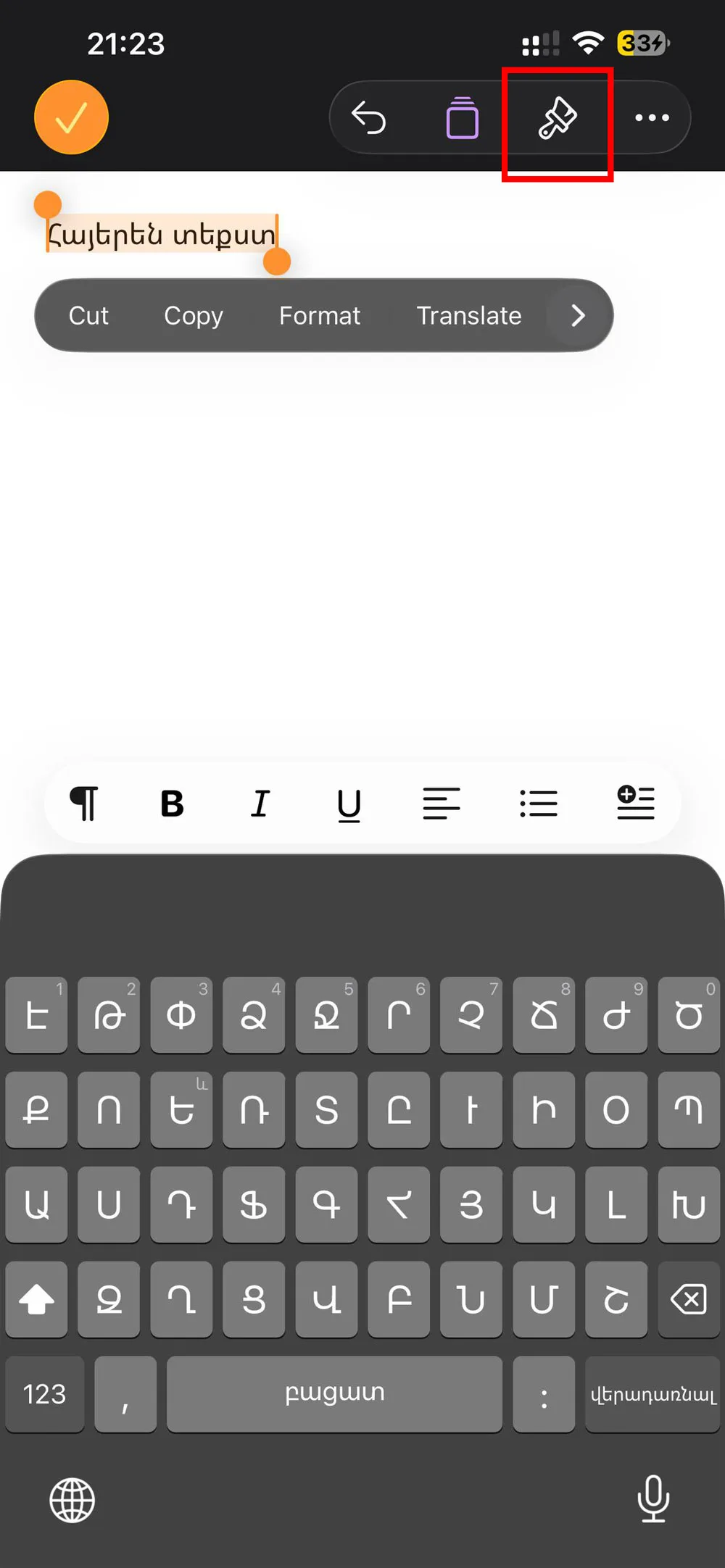
Step 26: Type and select some text
Type a line, in Armenian or any language, then select it to bring up the formatting options.
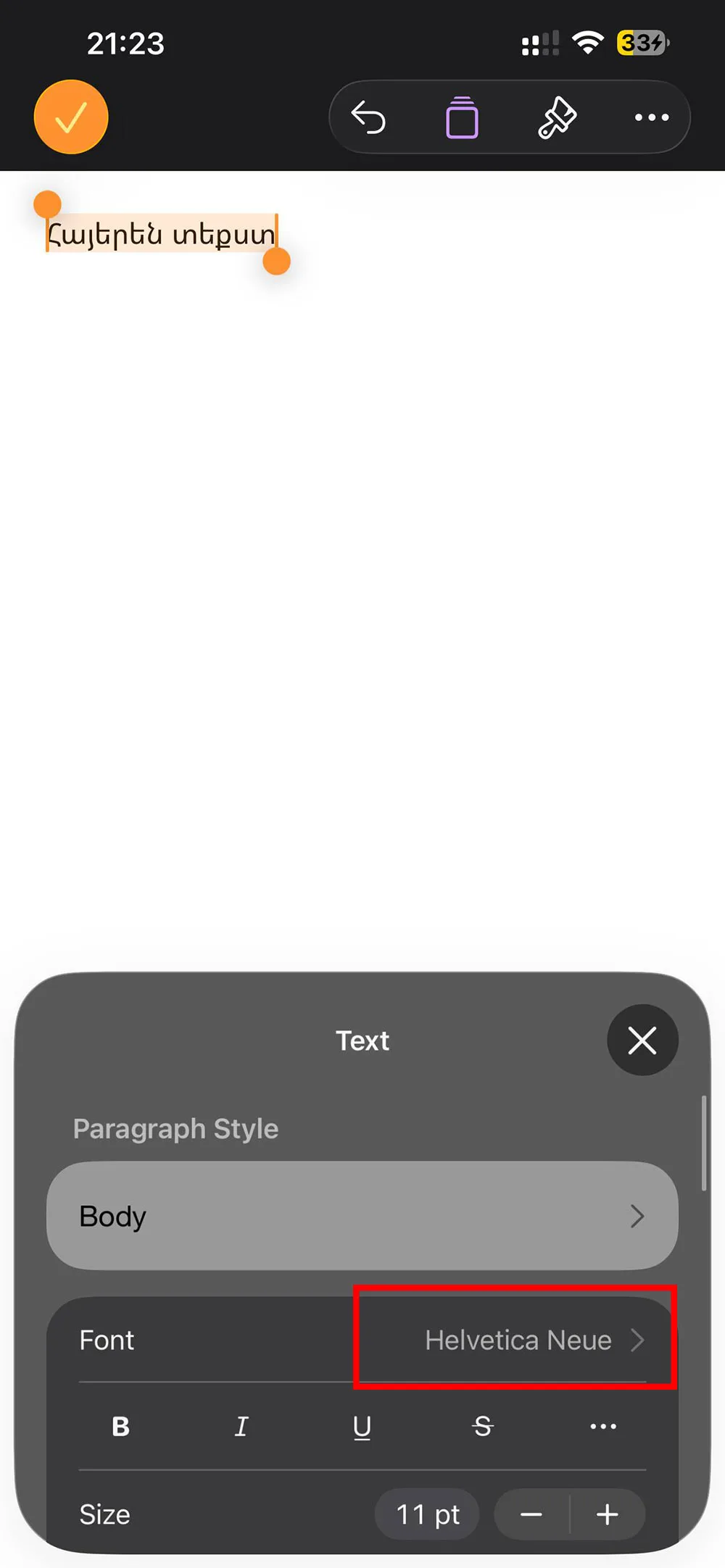
Step 27: Open the font settings
Tap Font in the formatting panel.
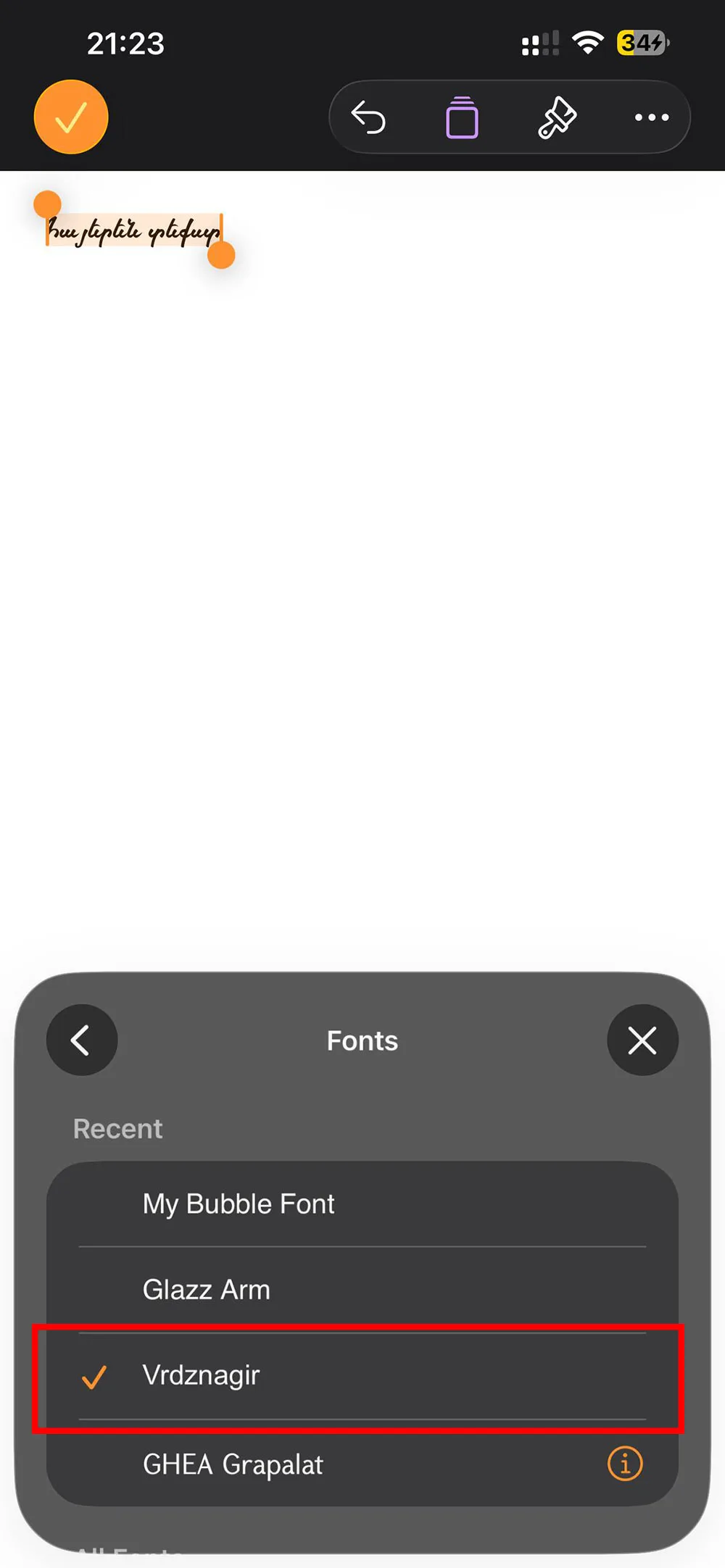
Step 28: Pick your Armenian font
Your installed fonts sit in the list alongside the built-in ones. Pick one and the selected text updates immediately.
Fonts installed this way also work in Keynote, Numbers and other apps that read the system font list. Not every third-party app does. Each app decides for itself, which is why some of the big ones get their own sections below.
Use the Font in CapCut
CapCut ignores system fonts but imports font files directly, so all it needs is the extracted .ttf or .otf from steps 1 to 4. Fontcase is not involved here at all.
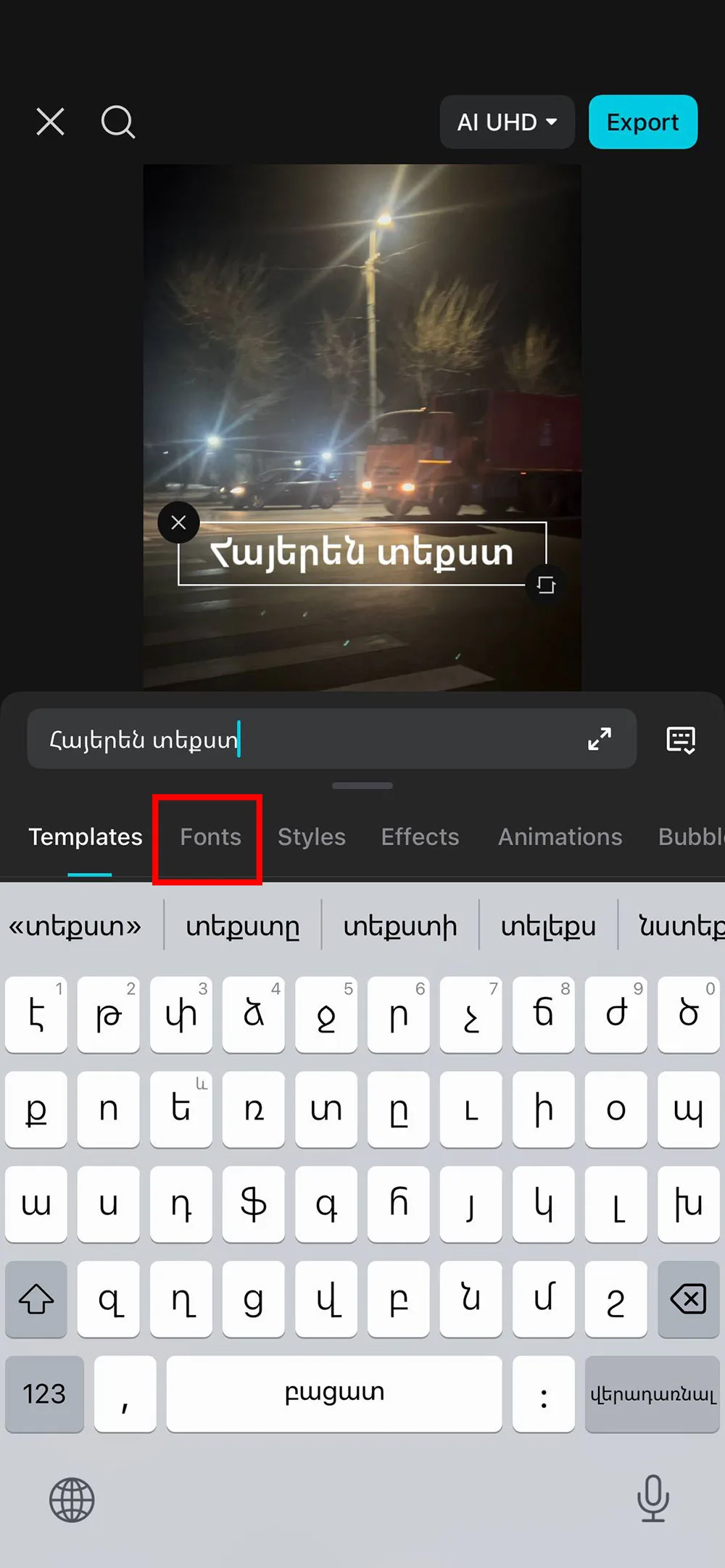
Step 1: Open the Fonts tab
Open your project, select your text, and go to the Fonts tab.
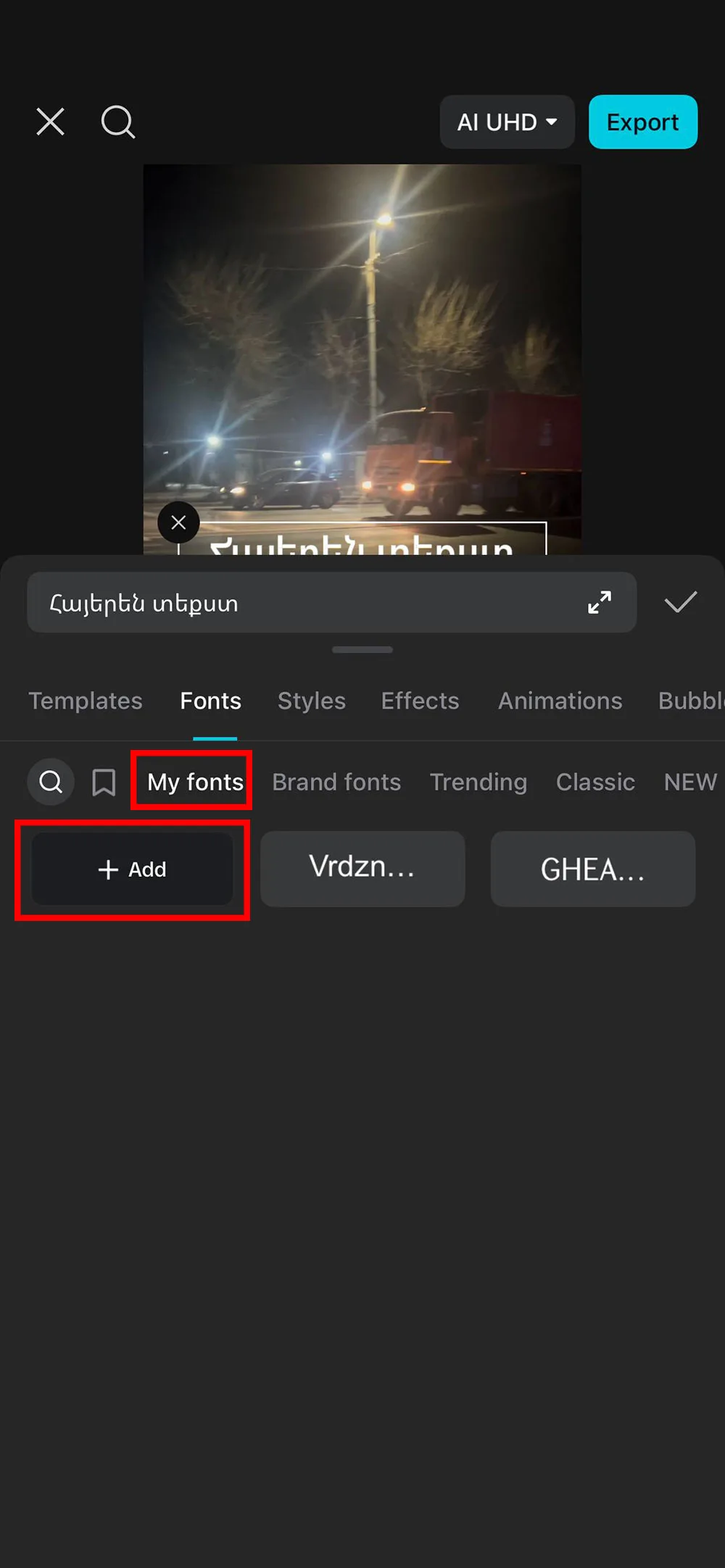
Step 2: Open "My fonts"
Tap My fonts. The section is empty until you add something. Tap + Add.
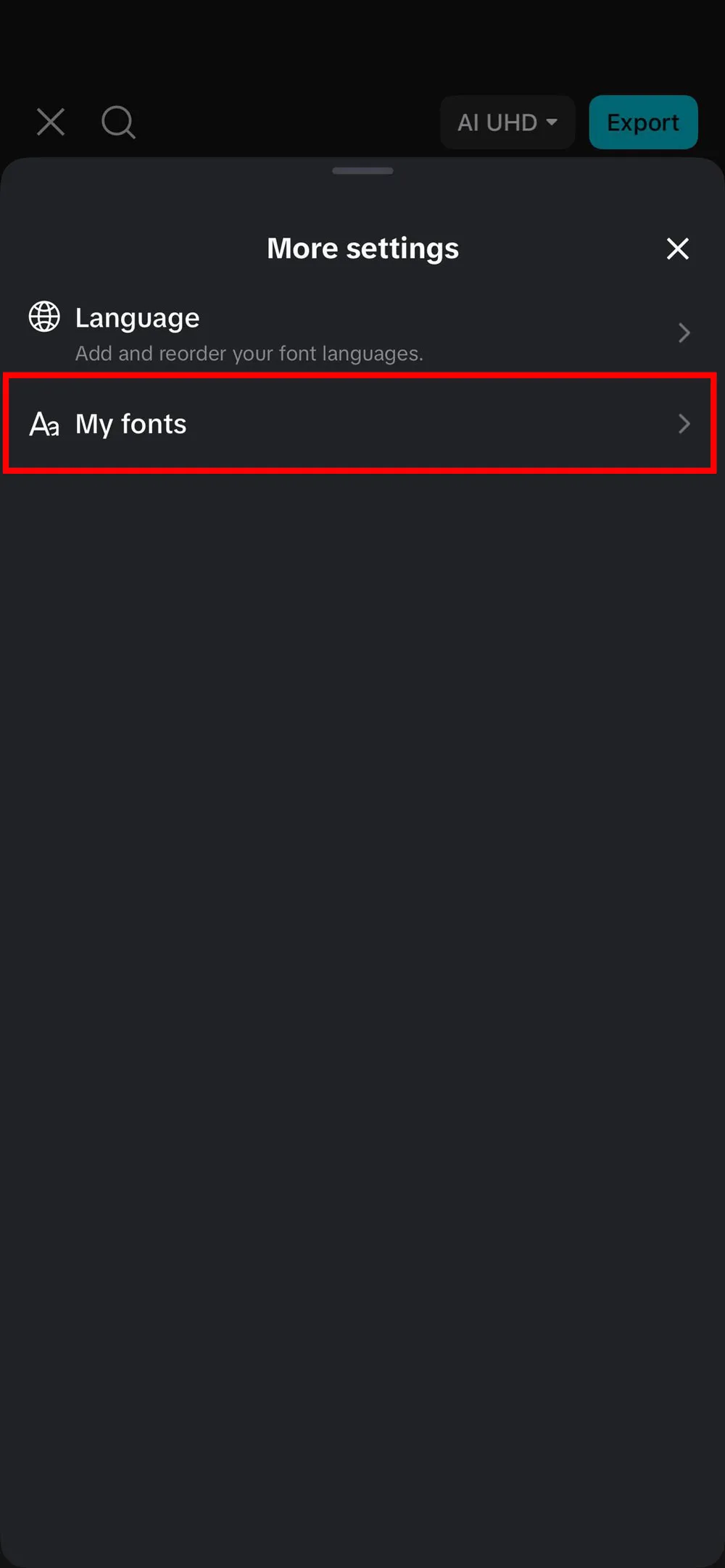
Step 3: Tap My Fonts in the modal
In the window that opens, tap My Fonts to reach the file picker.
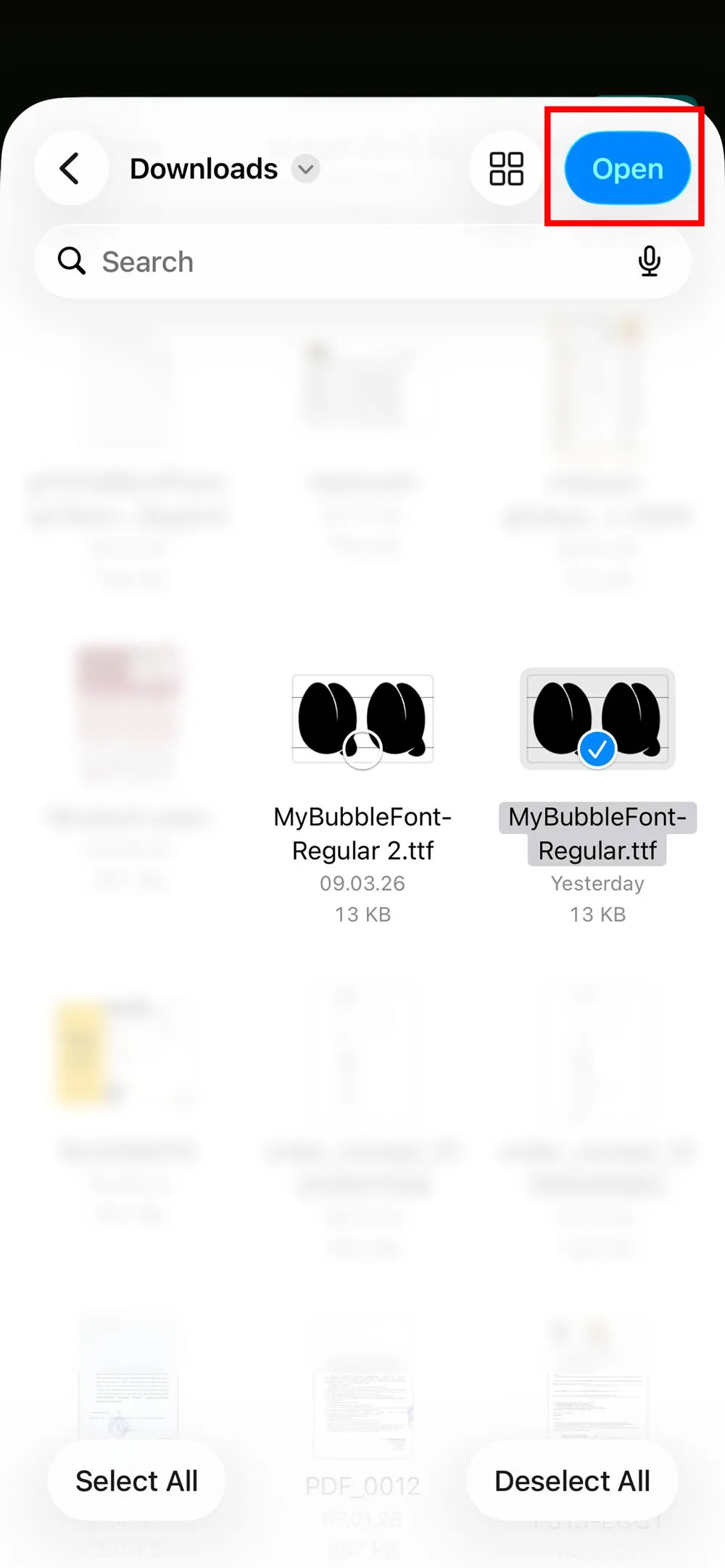
Step 4: Select the font file
Browse to the folder with the extracted font, Downloads by default. Select the .ttf or .otf file and tap Open.
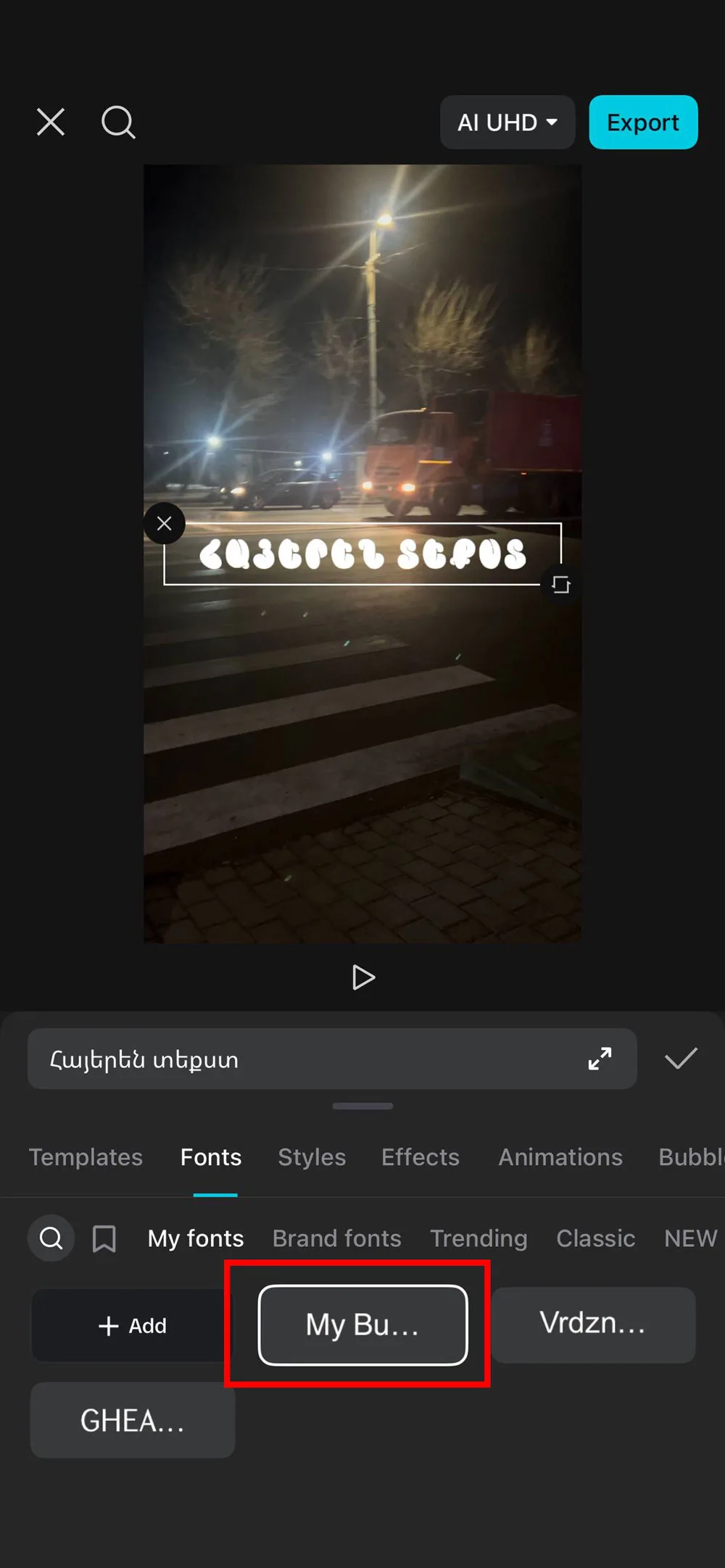
Step 5: Apply it
The font now lives in My fonts. Tap it and your text switches over. It stays there for future projects too.
Use the Font in Picsart
Note: custom fonts in Picsart are a Pro feature.
The font file from steps 1 to 4 is all you need. Open the font file on your iPhone, use the share option, and send it to Picsart. Then create or open a project, add text, open the Font option, and find your font under My Fonts. Once added, it stays available for future projects.
Use the Font in Canva
Note: uploading your own fonts is a Canva Pro feature, part of the Brand Kit tools.
With the extracted font file ready, open Canva, go to the Brand Kit or font upload option, upload the .ttf or .otf file, and select it in your design.
What About Google Docs?
Google Docs on iPhone and iPad does not accept custom fonts at all. There is no import option, and the app never looks at fonts installed on the device. If a document has to be in an Armenian font from this site, write it in Pages, or use Google Docs in a desktop browser where the font situation is different.